“Search inside videos” means three different things, and the right one depends on what you remember about the clip. You might remember what the footage shows, what someone said, or the text shown on screen. This page covers all three, but it leads with the one we think fits most video: searching by what’s actually in the shot.
The Short Answer
There are three ways to search inside a video on Mac. You can search by what the footage shows (visual search), by what was said (transcription), or by text on screen (OCR). Visual search is the best default – video is a visual medium, so searching it visually matches how you remember most clips. The other two suit specific jobs, covered below.
Finder and Spotlight do none of these. They match the file name and basic metadata, not the content inside the video. So the first step is deciding which of the three jobs you have, then choosing a tool built for it.
What the footage shows
Visual search
Describe the shot in plain words and match clips by their visual content.
What was said
Transcription (ASR)
Convert speech to text and jump to the timestamp a phrase was spoken.
Text on screen
OCR
Read characters in the frame to find a specific on-screen detail.
Why Finder and Spotlight Can’t Search Inside Videos
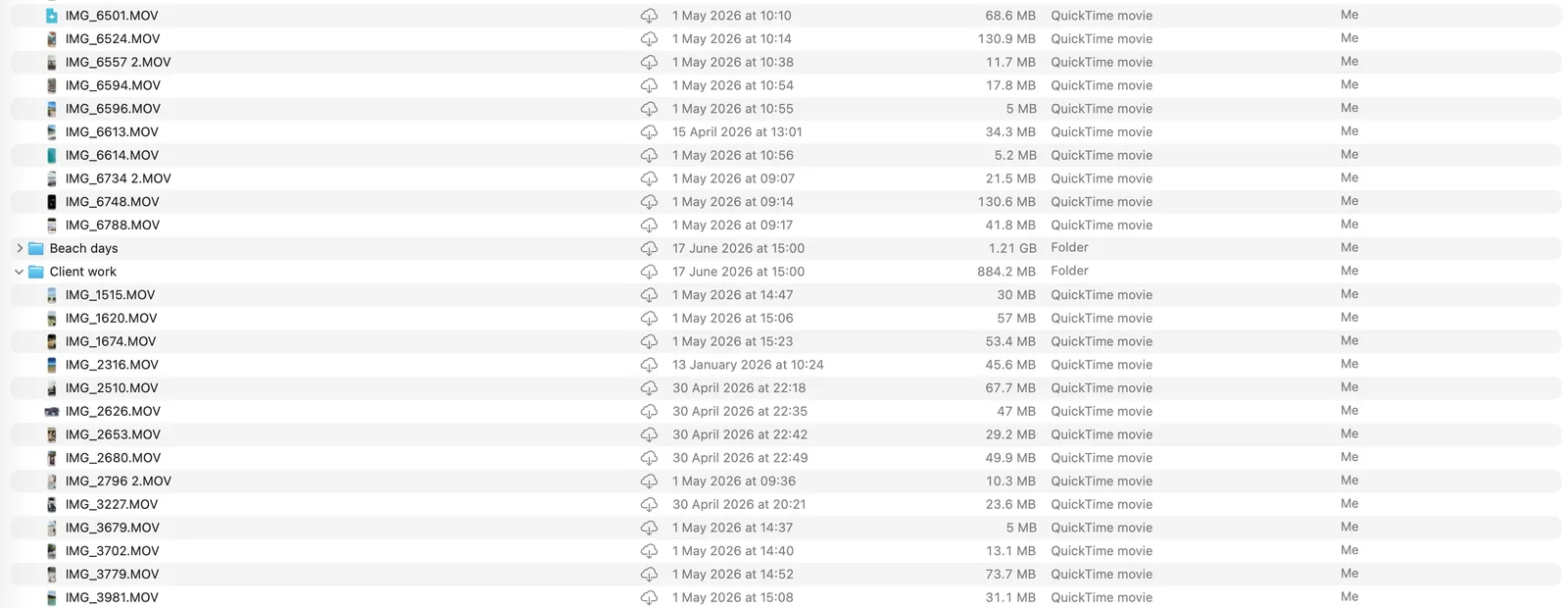
Finder and Spotlight index a video’s file name, format, size, date, and folder – not the content. They were built to locate files, not to look inside them. So a search for “sunset interview” only works if those words are in the file name. If the clip is called IMG_4471.mov, the built-in tools can’t find it by what it contains.
This is why a folder of clips named DJI_0032, GX010188, and Untitled 7 becomes a black box. The footage exists and the moment exists, but the only way in is to open each file and watch. Searching inside videos requires a tool that reads the picture, the audio, or the on-screen text.
Option 1 – Search by What’s in the Video (The Best Way)
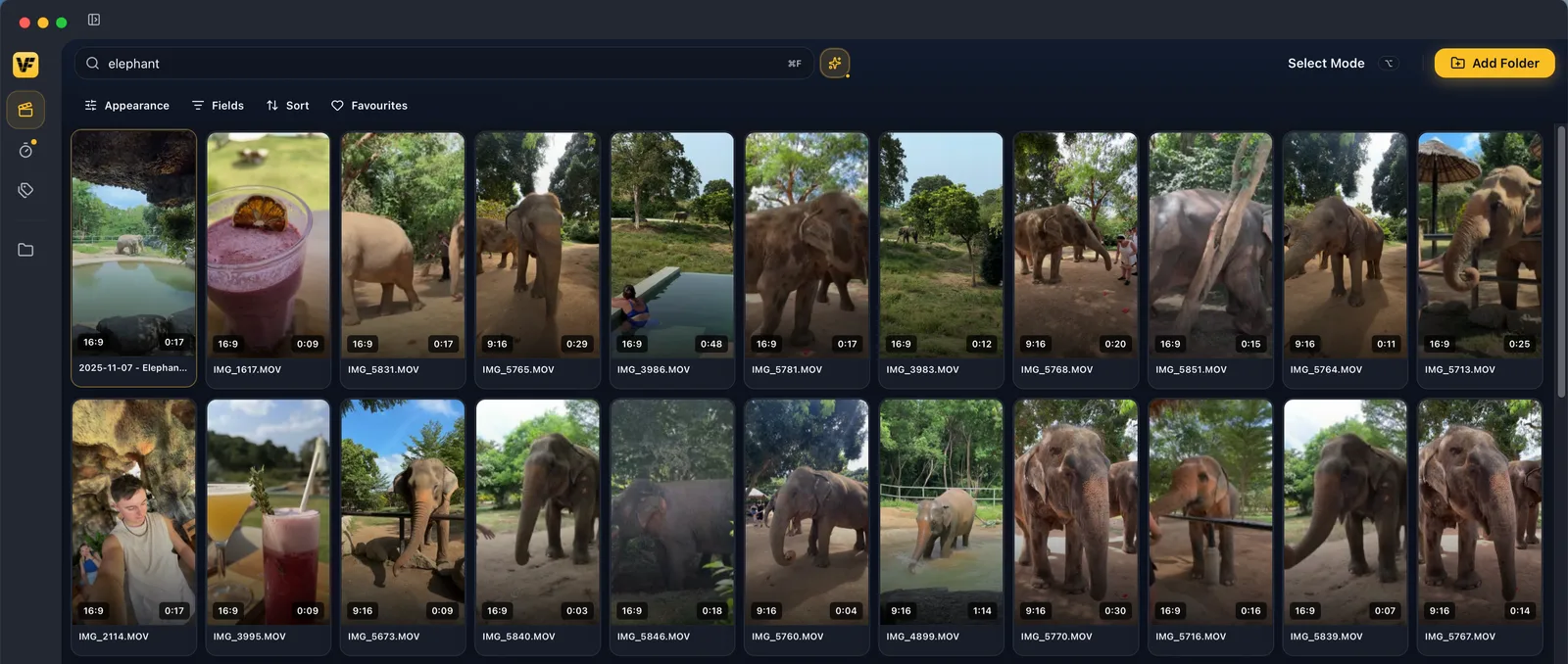
The best way to search inside most videos is by what the footage shows. You describe the shot in plain words – “aerial beach shot,” “coffee being poured,” “dog running on sand” – and the tool matches clips by their visual content, ranked by how closely each fits. Video is a visual medium, so searching it visually is the way to find most clips.
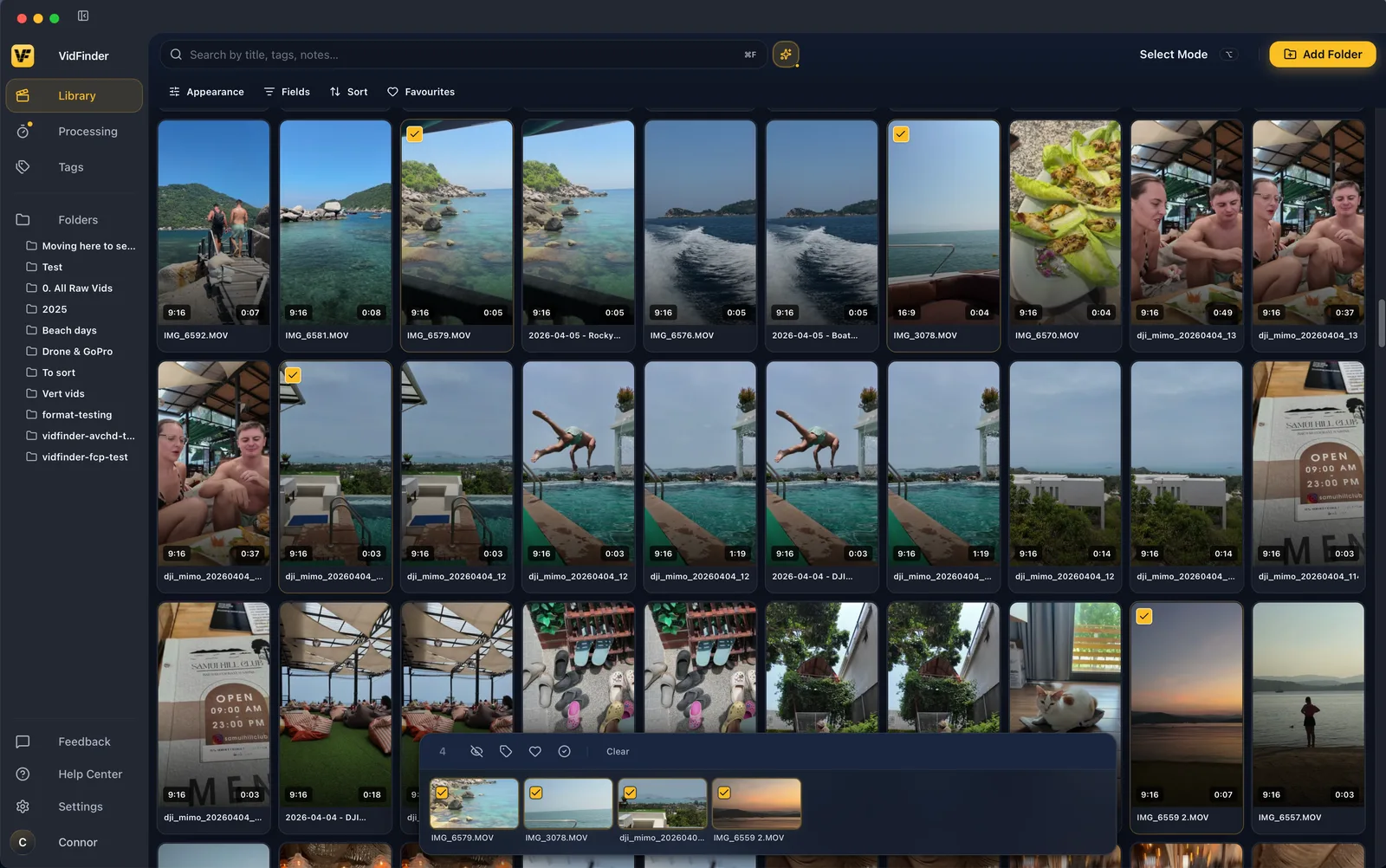
This is how VidFinder works. VidFinder is a native macOS app that brings the videos from every hard drive, iCloud and Google Drive folder on your Mac into one visual library – scrub through previews – search by file name, folder name or simply describe what’s in the shot. Find your clips in seconds, not minutes. Its Smart Search runs OpenAI’s CLIP ViT-B/32 model fully on-device: it samples 8 frames spanning each video, turns each into a 512-dimension vector, and ranks clips by how closely they match your description. Nothing is uploaded – all indexing and search happen on your Mac.
Because it matches by meaning rather than exact words, an untagged library is searchable on day one. You don’t have to tag your back catalog first for the tool to be useful. The honest limit: because it samples 8 frames per clip and reads the picture only, a detail on screen for a split second between samples can be missed, and it won’t find spoken words or on-screen text – which is what the next two options are for.
Option 2 – Search What Was Said (For Dialogue-Heavy Footage)
Another way is to search the words spoken in a video. A transcription tool (also called ASR, automatic speech recognition) converts the audio to text, indexes it, and jumps you to the timestamp where a phrase appears. Choose this when your goal is dialogue – you have a lot of interviews, podcasts, meetings, or lectures, and the words matter more than the picture.
For example, “the clip where Anna explains the new pricing” or “the meeting where we discussed the budget” are speech searches, not visual ones. Several Mac tools do this locally, including Fenn, which transcribes and indexes speech on-device and jumps you to the moment a phrase was spoken.
Option 3 – Search On-Screen Text (For Text in the Frame)
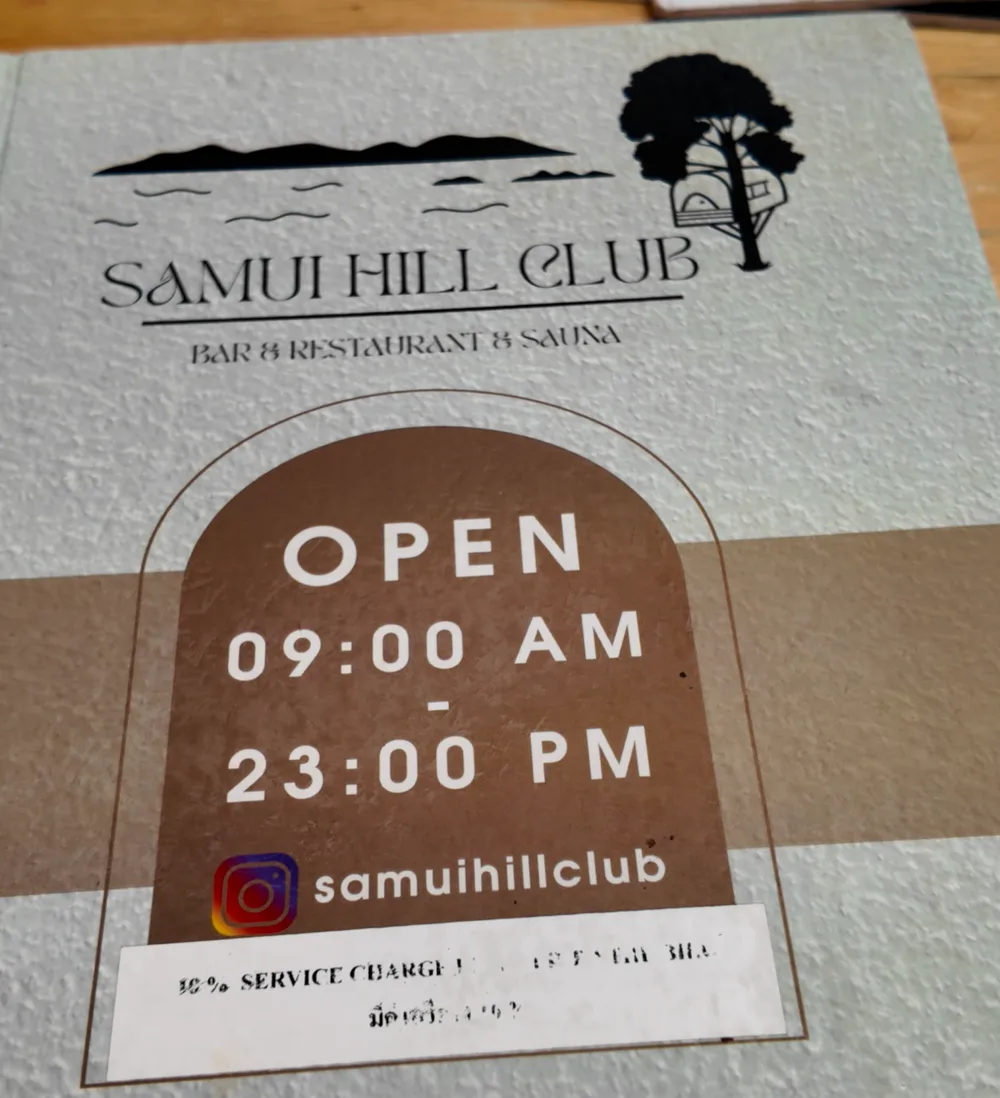
The third way is to search text shown on screen – a jersey number, a slide title, a sponsor logo, a dashboard value, a product label. OCR (optical character recognition) reads the characters in the frame and makes them searchable, so you can find the exact frame where “Revenue Q3” or “number 27” appears. Choose this when your goal is a specific on-screen detail, common in screen recordings, event footage, and product shots.
This is a distinct capability from both visual search and speech search. A tool that reads pictures or transcribes audio won’t necessarily read on-screen text, so check that the tool you pick lists OCR specifically.
How to Search Your Whole Video Library by What’s in the Shot
Here is Option 1 end to end in VidFinder. Connect your folders, let the app index in the background, then search by describing the shot and drag the result straight into your editor. The point is to stop opening clips one by one across scattered drives.
- 1
Connect your folders. Add any folder Finder can see – local drives, iCloud, Google Drive, or external drives. VidFinder pulls only video files and leaves everything else alone.
- 2
Let it index. The app generates a thumbnail and a short scrub-able preview clip for each video and, in the background, builds the Smart Search index. Originals are never moved, renamed, or changed – VidFinder only reads them.
- 3
Search by meaning. Type what’s in the shot (“night city street,” “person kayaking”). Smart Search combines your description with file names, folder names, and your own tags in one query, ranked by match.
- 4
Scrub to confirm. Hover a thumbnail to scrub its 8-second preview and check it’s the right take without opening the file.
- 5
Drag it out. Drag the clip straight into your editor, an email, or Slack. Multi-select collects clips in the Selection Tray for batch handling.
VidFinder supports 20 video container formats, including mp4, mov, m4v, mkv, avi, and webm. Previews live in a local cache, so you can browse, search, and queue clips even when the source drive is unplugged – then plug it in for the final drag into your editor.
What About Apple Photos?
Apple Photos can search videos in your camera roll by date, caption, and – on supported Macs – by content using natural language. That works if your footage lives inside the Photos library. It breaks down for creators whose clips are spread across external drives, Google Drive, and project folders, because Photos only searches what it has imported.
There is a second catch on Mac: dragging a video out of Photos into an editor often hands over an image rather than the video file. So even when Photos finds the clip, getting it into your timeline can fail. For a scattered, multi-drive library that has to feed an editor, a tool that indexes files where they already live is a better fit.
Which Option Should You Use?
Start with visual search (Option 1) – it fits most footage, works on an untagged library, and matches how you remember a shot. Switch to transcription (Option 2) when your goal is dialogue and you have a lot of interviews, meetings, or podcasts. Use OCR (Option 3) when the thing you need is text shown on screen.
Many real searches are visual – footage where nobody narrates the shot and no text appears. That is the gap Finder, Spotlight, and transcription tools leave open, and it is the job VidFinder is built for.
Frequently Asked Questions
How do I find a clip when I only remember what it looked like?
Use visual (semantic) search. VidFinder’s Smart Search reads the picture and matches clips to a plain-language description like “aerial beach shot,” ranked by how closely each clip matches. This is the recommended default for most footage.
Can I search inside a video for a specific word that was spoken?
Yes, with a transcription (ASR) tool that converts the audio to text and lets you jump to the timestamp. VidFinder does not transcribe speech, so use a dedicated transcription tool for spoken-word search.
Can I search for text that appears on screen in a video?
Yes, with an OCR tool that reads characters in the frame. VidFinder does not do OCR. Check that any tool you pick lists on-screen text search specifically, as it is separate from speech search.
Does searching inside my videos upload them to the cloud?
Not with an on-device tool. VidFinder runs all indexing and search locally on your Mac using the CLIP model; video files, frames, and vectors are never uploaded. The only one-time download is the ~149 MB model itself.
Do I have to tag my videos first?
No. Because Smart Search matches by visual meaning, an untagged library is searchable immediately. You can add your own tags and notes later for detail the picture can’t convey.
What video formats can VidFinder search?
20 container formats, including mp4, mov, m4v, mkv, avi, webm, mts, and m2ts.
Which Macs does VidFinder run on?
macOS 11 (Big Sur) or later on Apple Silicon. The stable release is Apple Silicon–only.