
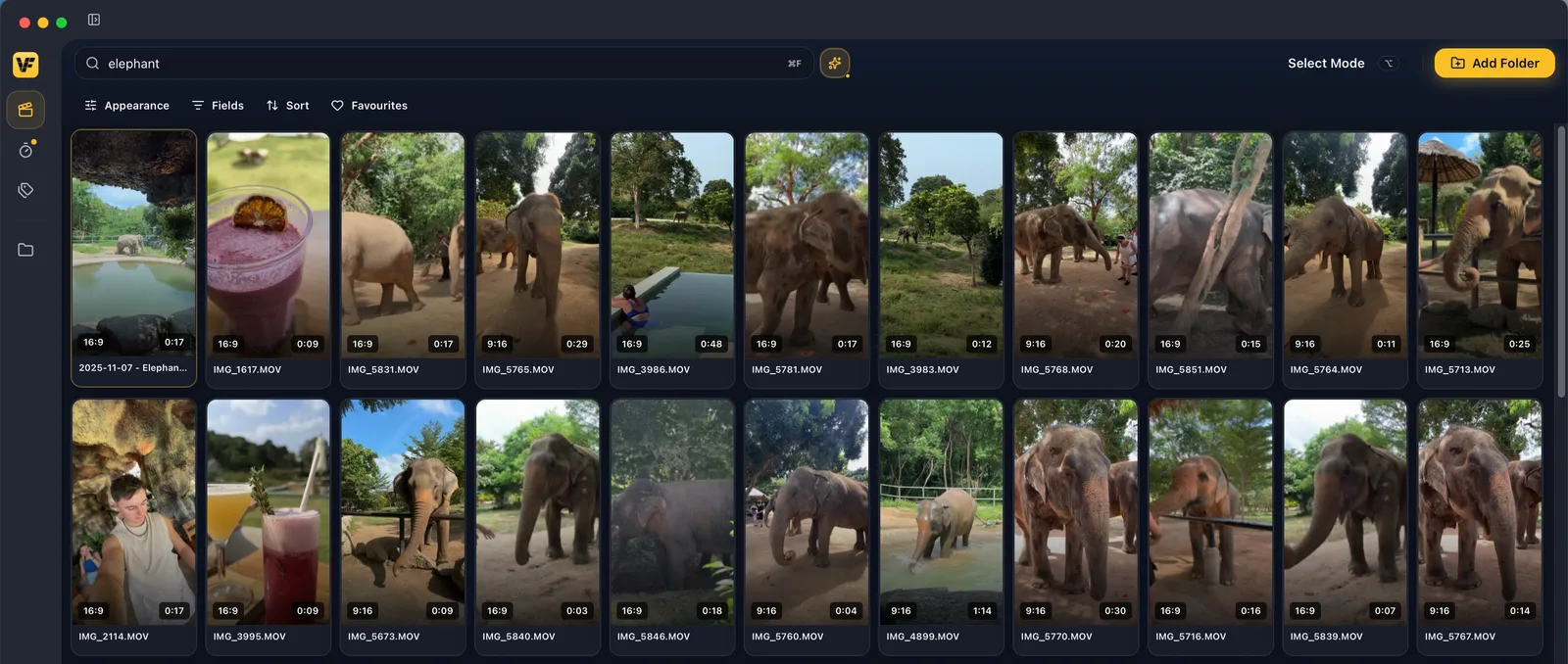
Most tools give you one search box and one way to search. VidFinder gives you one search box and splits what you type between two engines. The words your library already knows – a folder name, a tag, part of a file name – decide which clips are in play. Whatever is left over is treated as a description of the picture, and it decides what rises to the top.
The Short Answer
VidFinder splits one query between two engines. Words your library knows literally – a folder, a tag, part of a file name – constrain the pool. The leftover word describes the picture and ranks what is inside that pool. Standard search decides which clips are eligible; Smart Search decides what you see first.
One example teaches the whole model. Search 2025 holiday emma beach. VidFinder keeps the 2025 holiday folder and the emmatag as hard filters, then ranks that set by how much each clip looks like a beach. Her poolside and sunset clips from the same trip still appear – just below the beach ones. Nothing was tagged "beach" for that to work.
The rest of this page covers each half of the split: what the literal words match, how the visual half re-ranks the result, and where the two behave in ways that surprise people.
Standard Search Looks In Three Places At Once
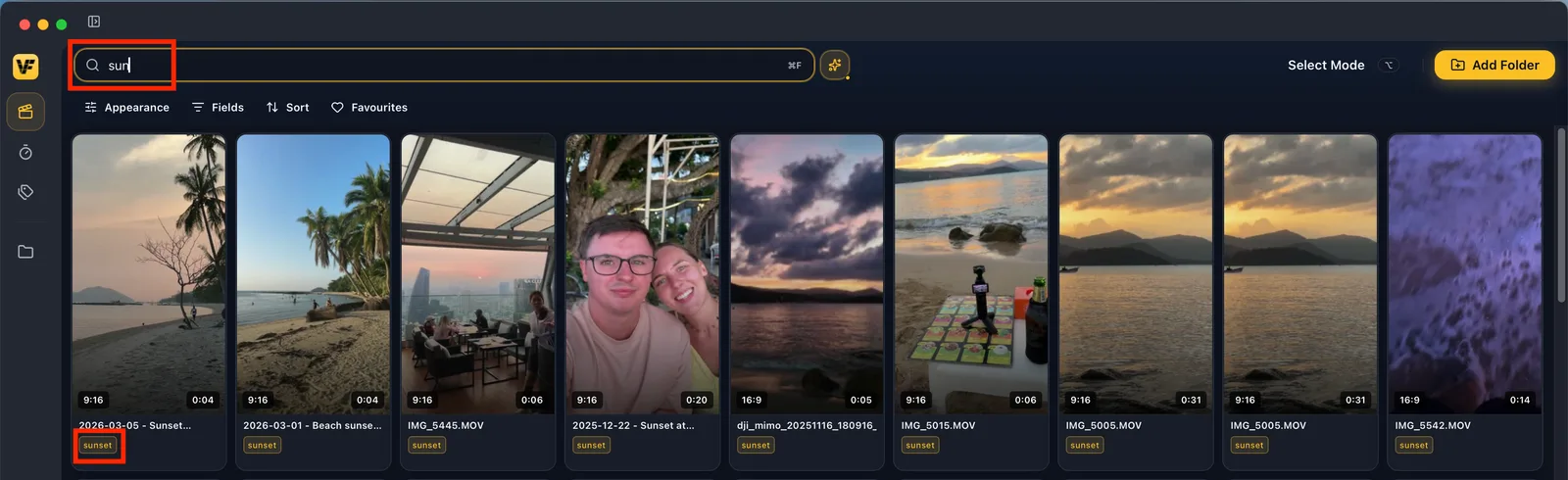
When you type a word, standard search checks three places at the same time: the file name, the full folder path the clip sits in, and any tags you have added. If your word shows up in any of the three, the clip appears. It matches partial words too, so bea surfaces everything named or tagged beach before you finish typing.
That three-way match is deliberate. It means you never miss a clip because you tagged it one way and named it another. A file called C010C023_260610FK.mp4 sitting in /Shoots/Camera A/ with a Hexagon tag can be found by its name, its folder, or its tag – whichever you happen to remember. Case and punctuation do not matter: Cam A, cam a, and cam-a all do the same thing, because the search keeps only the letters and numbers and ignores everything else.
The three places do not all match the same way, and the difference shows up in half-typed words. File names match on word beginnings: bea finds beach.mp4, but ach finds nothing. Tags and folder paths match on any run of letters, so ach does find a clip carrying a beach tag. If a fragment surfaces a tagged clip but not the file you expected, that is the rule you are seeing.
Stack Words To Steer Your Results
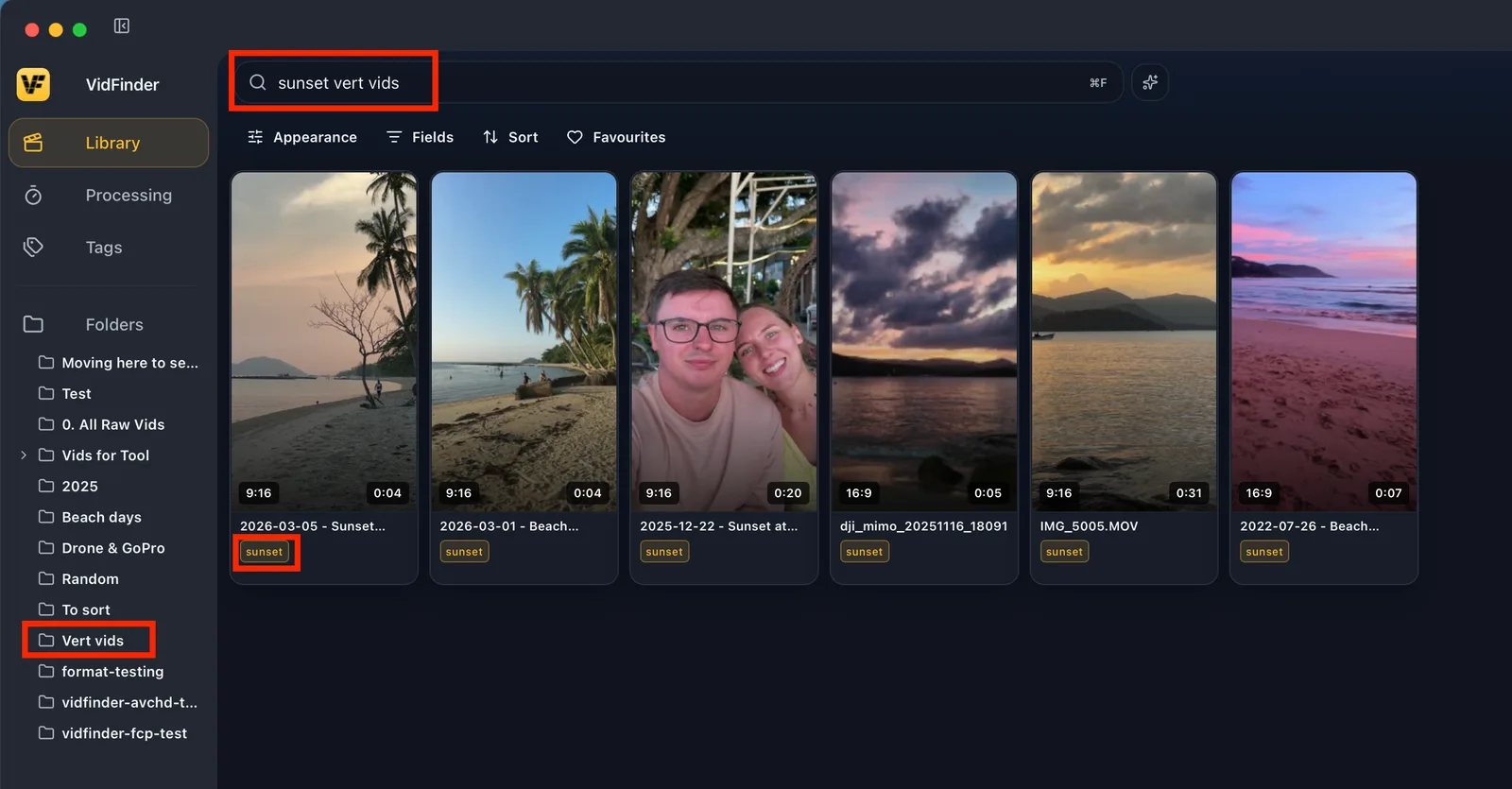
Adding a word does not always shorten the list. A word your library knows literally tightens the set. A word it does not know is read as a description, and VidFinder appends the clips that look like it below the literal matches. Stacking a term steers what comes first rather than cutting the list down.
Search Cam A Hexagon and the results arrive in three bands. First, the clips that match both words literally – named, foldered, or tagged that way. Below them, the Cam A clips that look like a hexagon, ranked by how strong the resemblance is. Below those, visual matches from the wider library. The first band answers the question you asked; the other two catch the clip you forgot to label.
Sort order applies to the first band only. Newest first, largest first, whatever you have set – that governs the literal matches. The two bands underneath are ordered by how closely each clip matches the description, so they hold their ranking no matter what the Sort control says. Seeing your Sort order stop applying part way down the grid is the visual half taking over, working as intended.
Why A Clip Shows Up That You Didn't Tag
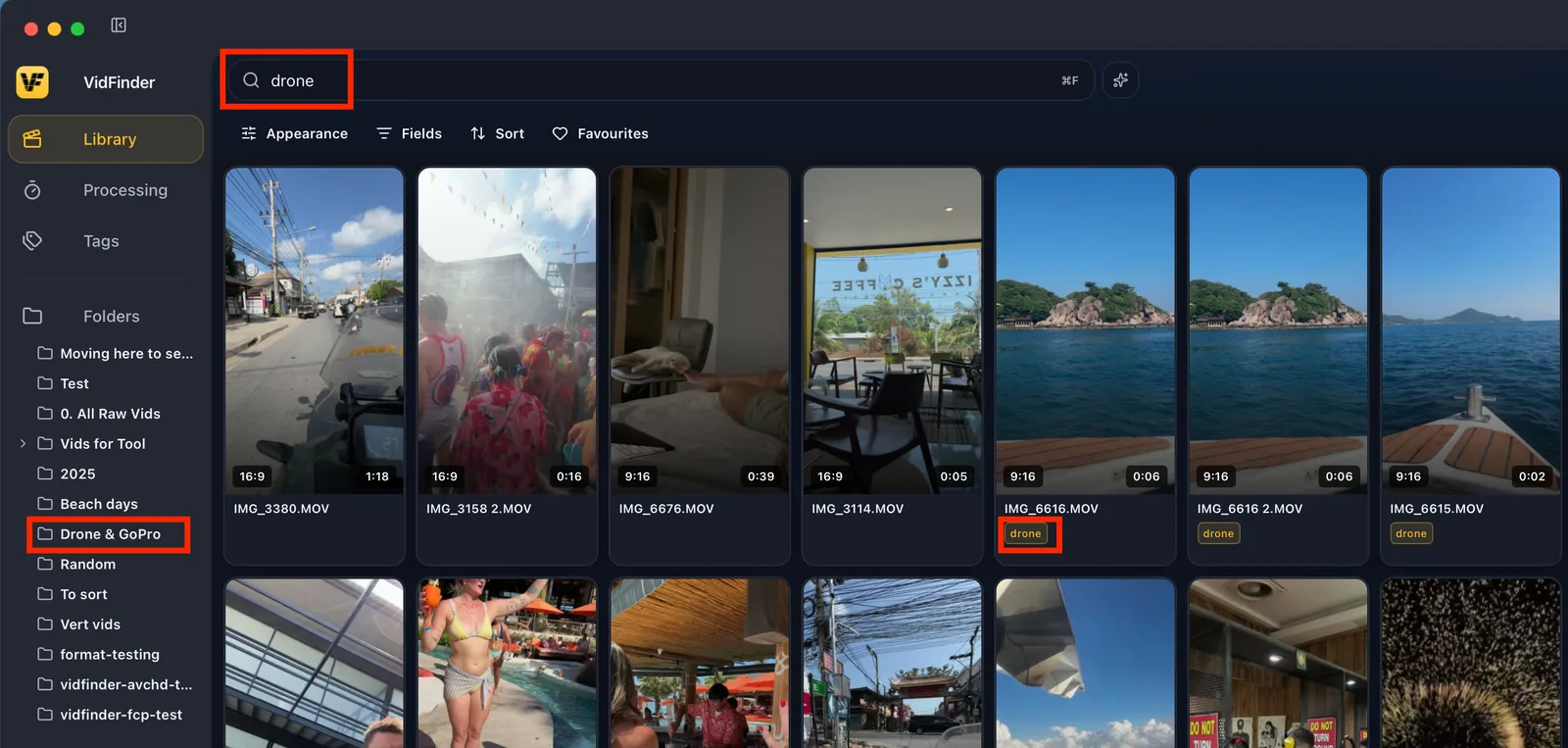
Three things can put a clip in your results without a tag on it. Its file name contains the word. Its folder path contains the word. Or Smart Search decided it looks like what you described. The first two are the wide net; the third is the visual half of the split doing its job.
You can usually tell which one you are looking at by position. Literal matches sit at the top, so a clip appearing above the fold matched through a name or a folder. Visual matches sit underneath, in relevance order. If a clip you do not recognize is sitting low in a long result set, it is there because it resembles your description, not because something is mislabeled.
Stacking a second term will not isolate one tag – it steers the ranking instead of filtering the set. To work with one tag today, lead with the words your library knows literally and read from the top down; the literal band is the strict part of the result. A dedicated tag-only filter is on the roadmap for when you want strict tag matching with nothing appended below it.
Smart Search Finds Footage By What It Looks Like
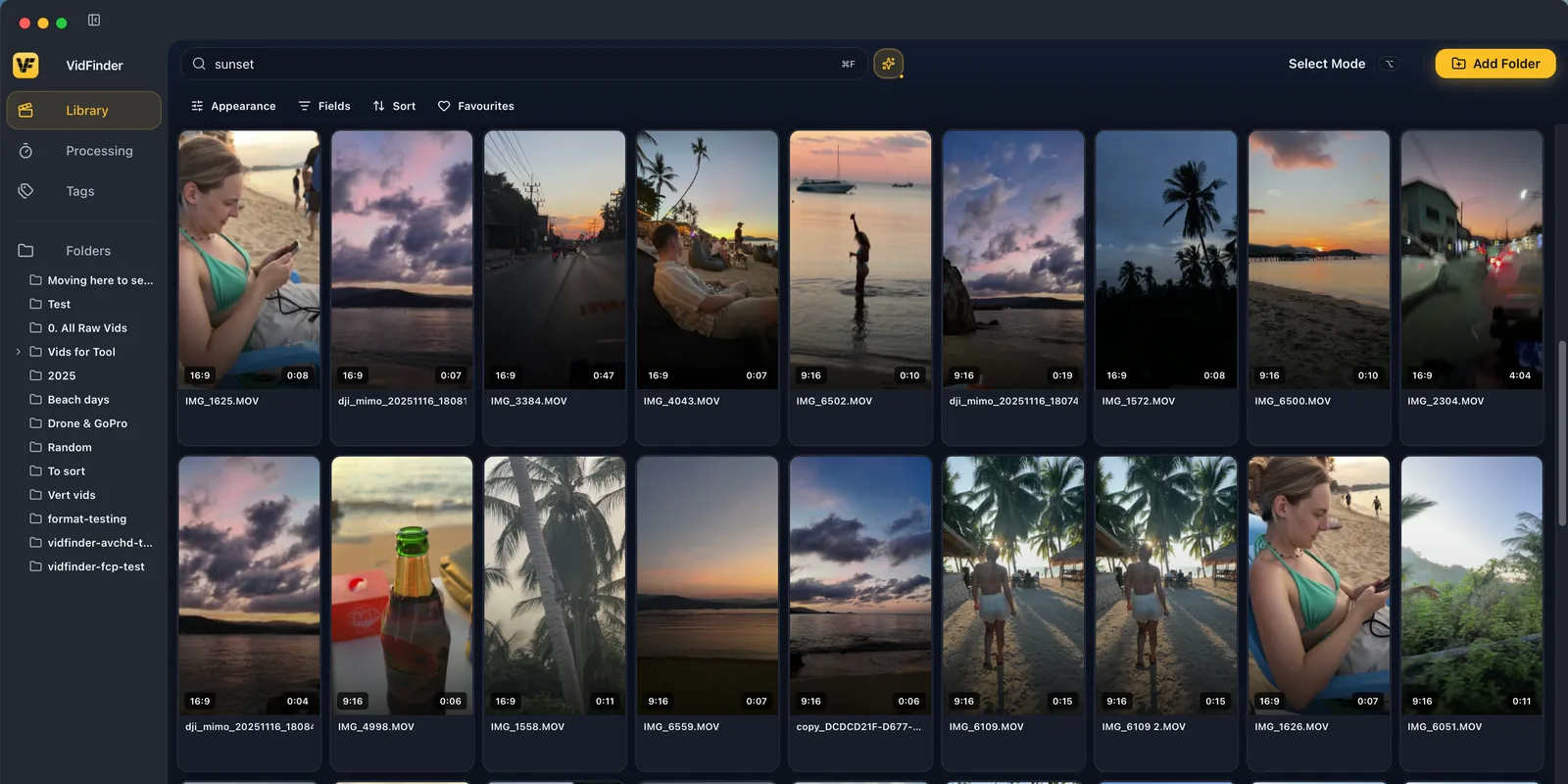
Smart Search uses an on-device AI model to read what is visible in each clip, so you can describe a shot in plain words and find it with zero tags and a camera-gibberish filename. Type sunset over water, person in a red jacket, or close-up of hands typing, and it ranks clips by how closely each one matches your description.
One part of that surprises people. VidFinder checks each word against your library first, so a word that happens to be a tag or a folder name is pulled out and used as a filter instead of staying in the description. Type sunset over water with a water tag in your library and you are asking for tagged-water clips ranked by how much they look like a sunset – not for every clip that looks like a sunset over water. Rename the tag or pick a different word when you want the whole phrase read as a picture.
It matches against the whole clip, not just the thumbnail. VidFinder samples 8 frames spanning the full length of each video – evenly spaced from 5% to 84% of the runtime – so a moment two thirds of the way in still counts. A client asks for "that shot of the coffee being poured." You never tagged it, and it is named A001_C012.mov. Type pouring coffee and Smart Search finds it by sight.
What Smart Search Can't Do
Smart Search matches what a frame looks like, not what is said or written on screen. It reads the picture, so it will not find spoken words and it will not read on-screen text – it is visual, not a transcript search. Because it samples 8 frames per clip, a detail on screen for a split second between those samples can be missed.
There is also a one-time setup cost worth stating plainly. Smart Search needs to download its AI model the first time. You do not have to trigger it: once you are signed in, the model arms itself in the background, and existing libraries backfill on their own. Standard search works the whole time, with or without the model.
Nothing Leaves Your Mac
Every part of Smart Search runs on your machine. The AI analysis, the frame sampling, and the search all happen locally. Your videos, the extracted frames, and the search index are never uploaded. The only thing VidFinder ever downloads is the AI model itself, one time. Your footage stays where it already lives.
For anyone working with unreleased or confidential footage, that is the point. There is no cloud step to trust, no upload to a third-party server, and no copy of your library sitting somewhere else. The model comes down once; nothing about your footage ever goes up.
Search Like A Pro
A few habits make both engines faster to drive:
- Lead with what your library knows. Folder, tag, or file-name words go first – they set the pool. Put the word describing the picture last.
- Read the top band as the strict answer. Literal matches are listed first. Anything below them is there because it looks right, not because it is labeled right.
- Partial words work, with two rules.
profindsproductandpromoin file names, because names match word beginnings. Tags and folders match any fragment, soachstill findsbeach. - Case and punctuation do not matter.
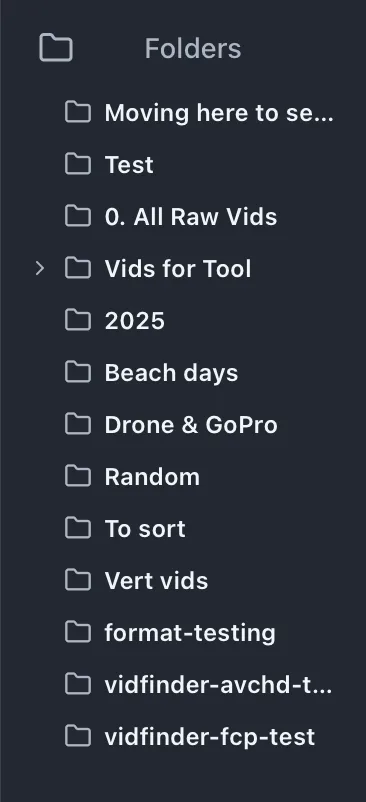
Cam A,cam a, andcam-abehave identically. - Name your folders well. Folder names are searchable, so a tidy folder structure makes everything easier to find.
- Describe the shot, not the file. When you cannot remember what you called it, switch to Smart Search and describe what is on screen.
Frequently Asked Questions
How do the two search engines work together?
They split one query rather than run side by side. The words your library already knows literally – a folder name, a tag, part of a file name – become hard filters that constrain the pool. Any leftover word is treated as a description of the picture, and Smart Search ranks the clips inside that pool by how much each one looks like it. Search 2025 holiday emma beach and VidFinder keeps the 2025 holiday folder and the emma tag as filters, then ranks that set by how much each clip looks like a beach.
Why is a clip showing up that does not have my tag?
There are three reasons. The word matched the clip's file name, or it matched its folder path, or Smart Search matched the clip visually because it looks like what you described. A clip inside a folder named "Camera A" appears when you search Cam A even if it carries no tag. Literal matches rank first, so the visual matches sit lower down the list rather than on top of it. A dedicated tag-only filter is on the roadmap.
Why did adding a search word give me more results, not fewer?
Because a word your library does not know literally is read as a description instead of a filter. Clips that match every word literally are listed first, then VidFinder appends clips that look like the description – first from the filtered pool, then from the wider library. Adding a word steers the ranking rather than cutting the list down.
Can I search for a word that was spoken in a clip?
No. Smart Search reads the picture, not the audio, so it does not transcribe speech. It matches what a frame looks like, which is a separate job from searching spoken words.
Can Smart Search find text shown on screen?
No. Smart Search does not read on-screen text. It matches the visual content of the frame, so a sign, slide title, or jersey number is not something it indexes as text.
Do I have to tag my footage before search is useful?
No. Standard search already works on your file names and folder names, and Smart Search matches by visual meaning, so an untagged library is searchable right away. Tags are for detail the picture and file name cannot convey.
Does searching my footage upload it anywhere?
No. All indexing and search run locally on your Mac. Video files, frames, and the search index are never uploaded. The only thing that ever downloads is the AI model itself, one time.
Why does partial typing already show matches?
File names match on word beginnings, so bea finds beach but ach does not. Tags and folder paths match on any run of letters, so ach does find a beach tag. That is why a half-typed word can surface a tag before it surfaces a file name.