The Short Answer
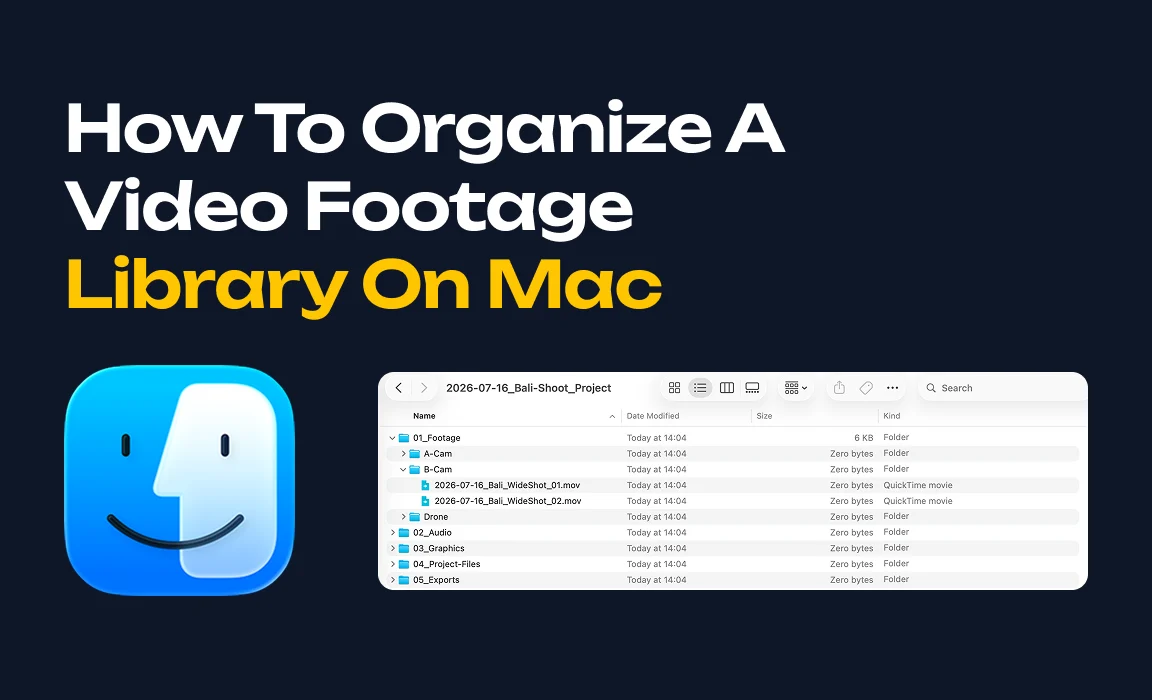
Use a numbered folder structure for new projects – 01_Footage, 02_Audio, 03_Graphics, 04_Project-Files, 05_Exports – and a consistent date-led naming convention. That handles footage you have not shot yet. For the back catalog you already have, stop reorganizing and add a search layer that reads what is in the shot.
Most guides on this topic only answer the first half. They hand you a filing system and assume you will maintain it for years. You will not, and that is not a discipline problem – it is a structural one. This page covers both halves: the folder structure that works for new work, and what to do about the three years of footage where the convention already broke.
Organizing New Footage: The Folder Structure That Works
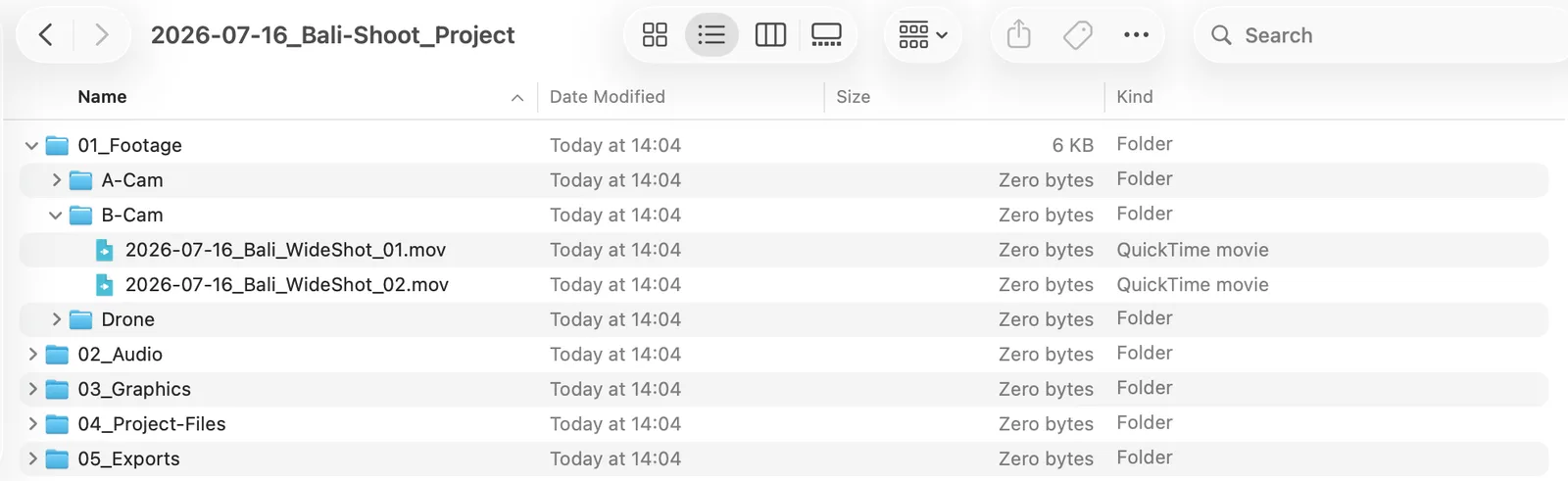
Create one folder per project, with numbered subfolders so your Mac sorts them in work order rather than alphabetically. Name every file with a date-led convention like 2026-07-16_Bali_Drone_Sunset_01. This is good advice, and it is what most editing guides recommend. It works for footage that has not landed yet.
The structure looks like this:
2026-07-16_Client-Name_Project/
├── 01_Footage/
│   ├── A-Cam/
│   ├── B-Cam/
│   └── Drone/
├── 02_Audio/
├── 03_Graphics/
├── 04_Project-Files/
└── 05_Exports/
The numbered prefixes matter more than they look. Without them, macOS sorts alphabetically and Audio lands above Footage for no useful reason. Numbers hold the folders in the order you actually work in.
Three rules make this hold up:
- 1
Date-led filenames, always.
2026-07-16_Bali_Drone_Sunset_01.movsorts chronologically anywhere it lands, and still reads correctly if it gets dragged out of its folder. - 2
Never move a file after you place it. Moving source footage after import breaks the link in Premiere, Final Cut, or Resolve, and relinking a whole timeline costs more time than the tidy-up saved.
- 3
Source, project, and export stay separate. The moment an export sits next to the footage it came from, you lose the ability to tell what is original and what is derived.
Follow this on every new project and your recent work will stay findable. The trouble starts later.
Why Your Folder Structure Stops Working At Around Year Two
A folder tree files each clip in exactly one place. Footage is not one thing – a single drone shot is Bali, sunset, aerial, client work, and 2024 at the same time. You pick one parent folder, and the other four ways you might look for it later are gone.
This is worth sitting with, because it gets misdiagnosed constantly. When you cannot find a clip, the instinct is to blame yourself for sloppy filing and start a reorganization. But the filing was fine. The problem is that a hierarchy is single-axis by design, and footage is multi-attribute by nature.
Here is how it plays out. You shoot a sunset drone shot for a Bali travel client in March 2024. You file it under 2024-03-12_BaliTravel_Project/01_Footage/Drone/. Eighteen months later you are cutting a different video and you need "that golden hour aerial." You are not thinking about Bali. You are not thinking about March 2024. You are not thinking about the client's name. You are thinking about what the shot looks like – and that is the one thing your folder path does not record.
Every clip you file is a bet on how future you will search for it. Over three years and a few hundred projects, you lose most of those bets. Not because you filed badly, but because you cannot predict what a shot will be needed for.
Folder trees also punish the thing you most want to do: putting one clip in several places. Your options are to duplicate the file, which doubles storage and creates two versions to keep straight, or to use macOS aliases, which break silently when the original moves. Neither survives contact with a real workflow.
The Part Folders Can't Fix: A Filename Doesn't Tell You What's In The Shot
Every organizing method above depends on you writing down what a clip contains. Rename it, tag it, or file it – you are still the index. Spotlight indexes a video's filename and basic metadata, not its picture content, so a clip you never described is a clip you cannot find.
This is the ceiling on the entire folder-and-naming approach, and it is why the advice never quite works no matter how disciplined you are.
Spotlight relies on importers to read file types, and for video those importers surface the filename, duration, codec, and dimensions. Standard attributes like the filename are indexed separately from content, which is why you can find a video by its name but not by what happens inside it. Searching your Mac for "sunset" returns files with "sunset" typed into the name. It does not return the forty clips that contain one.
Finder tags have the same ceiling. They work, they are free, and they do let one clip carry several labels at once – which solves the single-axis problem from the last section. But a tag only exists because you typed it. Tagging is a bill you pay at import time, on every clip, forever, and the moment a shoot runs late the tagging is the first thing to get skipped.
iMovie Events auto-group clips by the date and time they were recorded, which is useful and asks nothing of you. But date is one more single axis, and it is rarely the axis you search on.
So the honest summary of the built-in tools:
| Method | Handles multiple attributes | Works without you describing the clip |
|---|---|---|
| Folder tree | No | No |
| Finder tags | Yes | No |
| Finder comments | Yes | No |
| iMovie Events | No (date only) | Yes, but only by date |
| Spotlight search | n/a | No |
Nothing in that table does both. That is the actual gap.
What To Do With The Back Catalog You Already Have
Do not retro-tag it. Tagging three years of footage by hand is a project that never finishes, and you will guess wrong about which tags matter to future you. The realistic options are to leave it alone, tag only what you reach for often, or index it so it is searchable without tagging.
Take these in order, because the first one is right more often than people expect.
Leave it alone. If you do not go back to footage older than a year, the correct amount of effort to spend organizing it is zero. Archive it to a drive, label the drive, and move on. Most reorganization projects are procrastination wearing a productivity costume.
Tag only the clips you actually reuse. If you have a working set – the b-roll, the logo stings, the establishing shots you pull every month – that set is usually a few dozen clips, not a few thousand. Tag those. Ignore the rest. This is a weekend at most and it covers the majority of real retrieval.
Index it so it is searchable without tagging. This is the only option that scales to a library you did not organize as you went, because it removes the requirement that you described the clip in advance. The index reads the footage itself.
The reason to rule out the fourth option – retro-tagging everything – is worth being specific about. At thirty seconds per clip, a 4,000-clip library is over thirty hours of work. You will not do it. If you start it, you will abandon it around clip 300, and then you will have a library that is 8% tagged, which is worse than 0% tagged because you will not trust the search results.
How To Organize Without Moving A Single File
Add a second axis on top of the folders you already have. An index that reads your existing folders lets one clip carry several tags at once without duplicating the file or breaking a link in your editor. Your folder tree stays exactly as it is on disk.
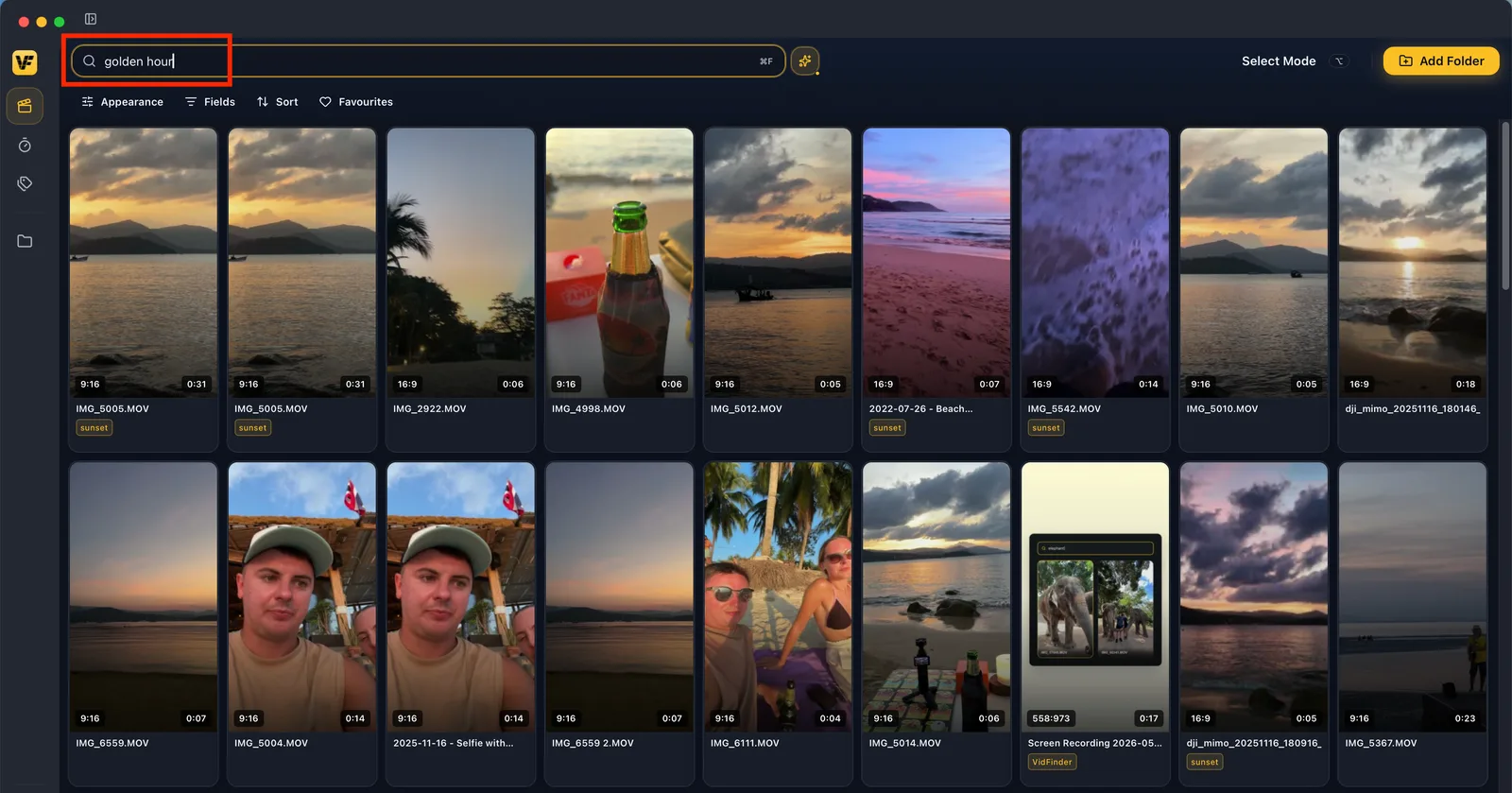
This is the approach VidFinder takes. VidFinder is a native macOS app that brings the videos from every hard drive, iCloud and Google Drive folder on your Mac into one visual library – scrub through previews – search by file name, folder name or simply describe what's in the shot. Find your clips in seconds, not minutes.
The mechanics matter here, so here is what it does:
It reads, it never writes.VidFinder only reads your source files. It does not move, rename, edit, or delete originals. Remove, hide, and favorite set values in VidFinder's own database. Reveal in Finder hands the path to macOS. Your drives look identical before and after.
It indexes what is already there. Connect any folder Finder can see – local, iCloud, Google Drive, external drive – and VidFinder indexes the video files inside it, ignoring documents and images. It reads 20 container formats: mp4, mov, m4v, mkv, avi, webm, mts, m2ts, mxf, ts, 3gp, asf, dv, flv, gif, m2v, mpg, ogv, vob, and wmv.
Tags sit alongside folders, not instead of them. One clip can carry as many tags as you want, organized into tag categories, plus per-video notes. The drone shot can be aerial, sunset, Bali, and client work at the same time, while the file itself never leaves 2024-03-12_BaliTravel_Project/01_Footage/Drone/.
Smart Search reads the picture. VidFinder samples 8 frames from each video, spread across its full duration, and runs them through a CLIP ViT-B/32 model to produce a 512-dimension vector per frame. When you type "golden hour aerial," it compares your words against those vectors and ranks clips by visual similarity. You never tagged the clip. It still comes back.
All of that runs on your Mac. The CLIP model runs on-device through ONNX Runtime – no Python, no server. Your video files, the extracted frames, and the resulting vectors are never uploaded.
What it will not do, because you should know before you install it:
- It does not search speech or on-screen text. There is no transcription and no OCR. Smart Search matches what a frame looks like. If you need to find a spoken phrase, this is the wrong tool.
- It samples 8 frames, not every frame. A shot that appears for half a second between samples can be missed.
- It is macOS only, Apple Silicon. No Windows or Linux build.
- It is not an editor. It indexes, previews, tags, and hands clips off by drag-out or Reveal in Finder. It does not cut or transcode.
- Camera cards and app libraries are not crawled. AVCHD and BDMV card structures, and Final Cut, Photos, and iMovie libraries, are treated as opaque. Copy clips out to index them.
When To Stop Organizing And Start Searching
Organizing is only ever a means to retrieval. If you can find the clip you want in under a minute, your system works, whatever it looks like. If you cannot, more folders will not fix it – the problem is that nothing in your library knows what your clips contain.
Run the test on your own library. Think of a specific shot you know you have, then go find it. Time it.
- Under a minute: your system is working. Do not reorganize it.
- One to five minutes: your folder structure is sound but you are browsing, not searching. Tag your working set and stop there.
- Over five minutes, or you gave up: the structure is not the problem. You are trying to find footage by a property that nothing in your library recorded.
The last case is the common one, and it is the one no amount of refiling addresses. You are not looking for a file. You are looking for a moment inside a file, and the filename never knew what that moment was.
Frequently Asked Questions
What is the best folder structure for video footage on Mac?
One folder per project, with numbered subfolders so they sort in work order: 01_Footage, 02_Audio, 03_Graphics, 04_Project-Files, 05_Exports. Use date-led filenames like 2026-07-16_Bali_Drone_Sunset_01. Keep source, project, and export files separate, and never move a file after you have placed it.
Can Spotlight search inside my videos on Mac?
No. Spotlight indexes a video's filename and basic metadata such as duration, codec, and dimensions. It does not index picture content. Searching for "sunset" returns files with "sunset" in the name, not clips that contain one.
Should I use Apple Photos or iMovie to organize my footage?
Both have real limits for editing work. iMovie Events group clips by recording date automatically, which takes no effort but only organizes on one axis. Apple Photos drags a video into some Mac editing tools as an image rather than a video file, and has no tag system for footage.
Do I need to rename all my old footage?
No, and it is usually a bad use of your time. At thirty seconds per clip, a 4,000-clip library is over thirty hours of work. Tag the small working set you actually reuse, or index the library so it is searchable without renaming anything.
How do I organize footage spread across multiple hard drives?
Do not consolidate it – that is a copy operation measured in days. Index the drives instead, so one search covers all of them. VidFinder records each library root's volume UUID and name, so clips on a disconnected drive stay in the library and get marked with a status rather than vanishing.
What happens to my files if I use a video organizer app?
With VidFinder, nothing. It reads your source files and never moves, renames, edits, or deletes them. Tags, favorites, and notes live in VidFinder's own local database. Your folder structure on disk is unchanged.
Can a clip be in two places at once?
Not in a folder tree – that is its core limit. Duplicating the file doubles storage, and macOS aliases break when the original moves. Tags applied over your existing folders let one clip carry several attributes without touching the file.
What if I move a file after indexing it?
VidFinder flags the broken link rather than dropping the clip, using five availability states: indexed, drive_offline, drive_mismatch, relocated, and unrecoverable. Point it at the new location and matched videos reuse their existing thumbnails and previews. Files are matched by inode and device, then original path and size, then filename and size.
Does it work without an internet connection?
Search and indexing run entirely on your Mac. Sign-in requires a connection and an active trial or subscription, and Smart Search needs a one-time model download before it works. After that, no connection is needed to search.