Apple Photos and VidFinder both let you search videos on a Mac, so they get compared. They are built for two different jobs. Apple Photos is the consumer library for your personal memories, synced everywhere through iCloud. VidFinder is a footage-search tool for the working video files sitting on your drives. This page lays out the honest split, where each one is genuinely better, and how to pick.
The Short Answer
Apple Photos is Apple's free, built-in library for personal photos and videos, with iCloud sync and strong recognition of people, pets, and scenes. VidFinder is a native macOS app that indexes the working video files on your hard drives, iCloud, and Google Drive folders into one searchable library and searches them by what a clip looks like. Photos is for memories; VidFinder is for footage.
The two overlap for about five minutes: both let you type a word and see videos. After that they diverge. Photos manages the camera roll you carry with you. VidFinder manages the scattered footage archive you actually edit from. The rest of this page covers what each does well and where the line falls.
What Apple Photos Does Well
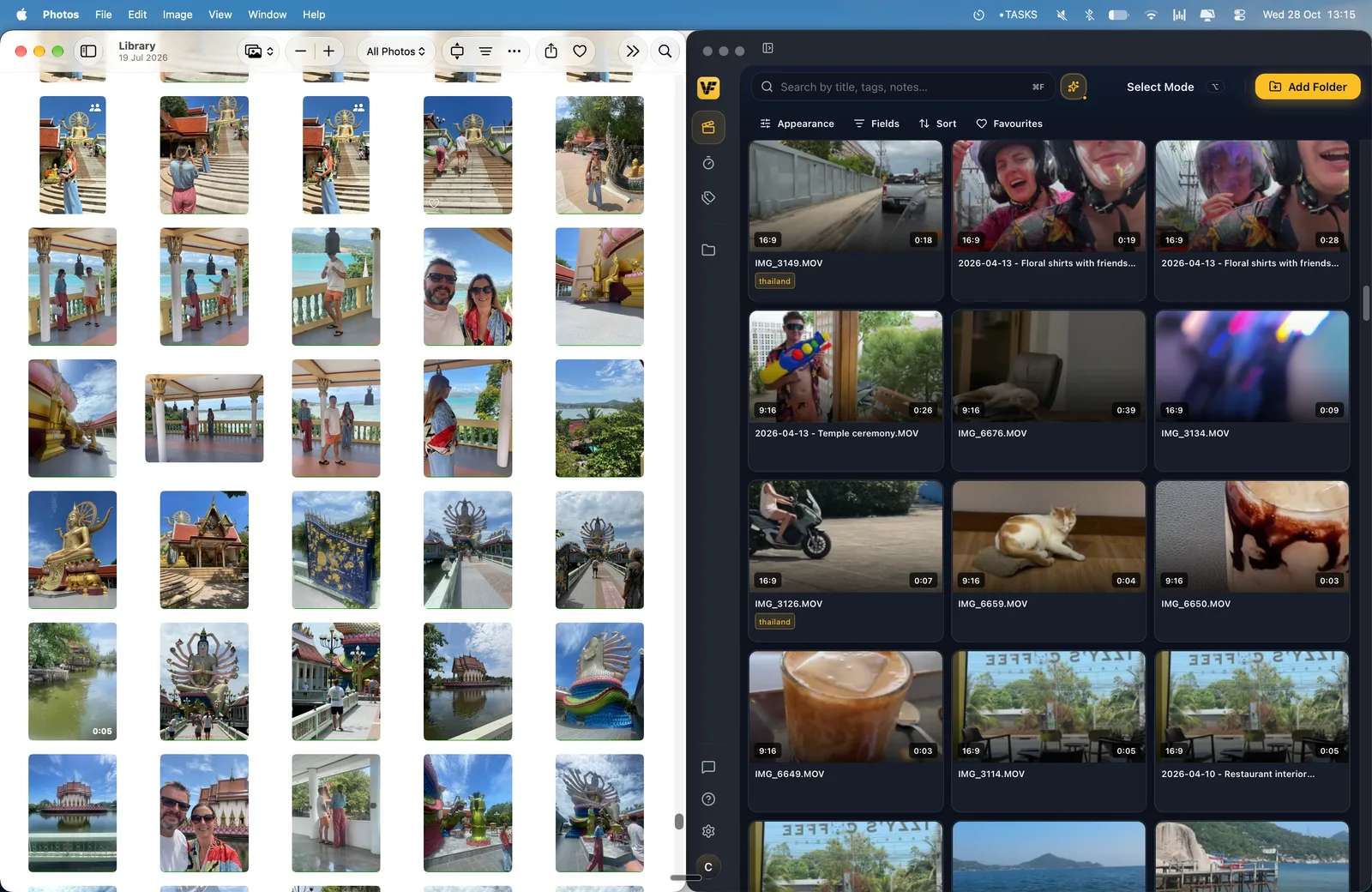
Apple Photos is free, built into every Mac and iPhone, and needs zero setup. It recognizes people, pets, scenes, objects, and locations in your library, reads text inside images, and syncs everything through iCloud so the same library appears on every device. Its Memories feature auto-assembles highlight videos. For personal media, it is a strong, no-cost starting point.
Say so plainly: for the videos on your phone, Apple Photos is hard to beat. It groups faces automatically, surfaces "the beach trip in June" from a natural-language search, and keeps your camera roll in sync across iPhone, iPad, and Mac without you lifting a finger. If your goal is finding a memory to rewatch or share, Photos already does the job and costs nothing.
Where Apple Photos Falls Short for a Working Footage Library
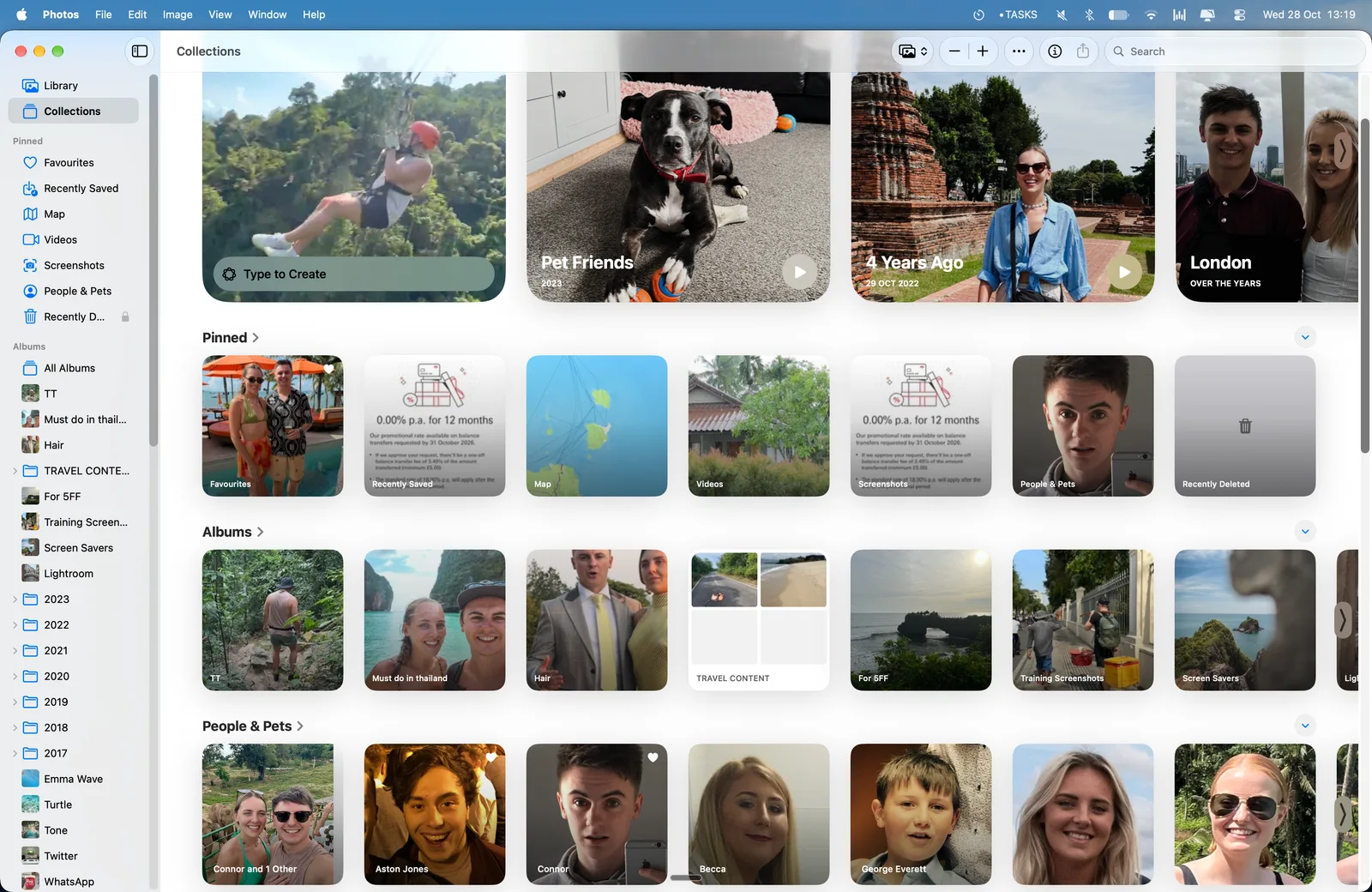
Apple Photos is built around a single managed library, not the folders your footage lives in. It does not index arbitrary drives or Google Drive folders, has no real tag system for a footage workflow, and, on Mac, dragging a video out into an editor can hand the editor a still image instead of the clip. It manages personal media, not a working footage archive.
For a solo creator, the friction shows up fast. Footage is spread across external drives, iCloud folders, and Google Drive, and Photos only sees what you import into its own library. There is no folder sidebar mapped to your shoots, no way to stack search terms to pin down one B-roll shot, and the recognition is tuned for people and pets in personal photos rather than the shot types and content you cut with. According to Apple's own support guidance, the reliable way to get a full-quality video out of Photos is File > Export, not drag-and-drop, because dragging can produce a thumbnail or an image.
How VidFinder Approaches the Same Problem
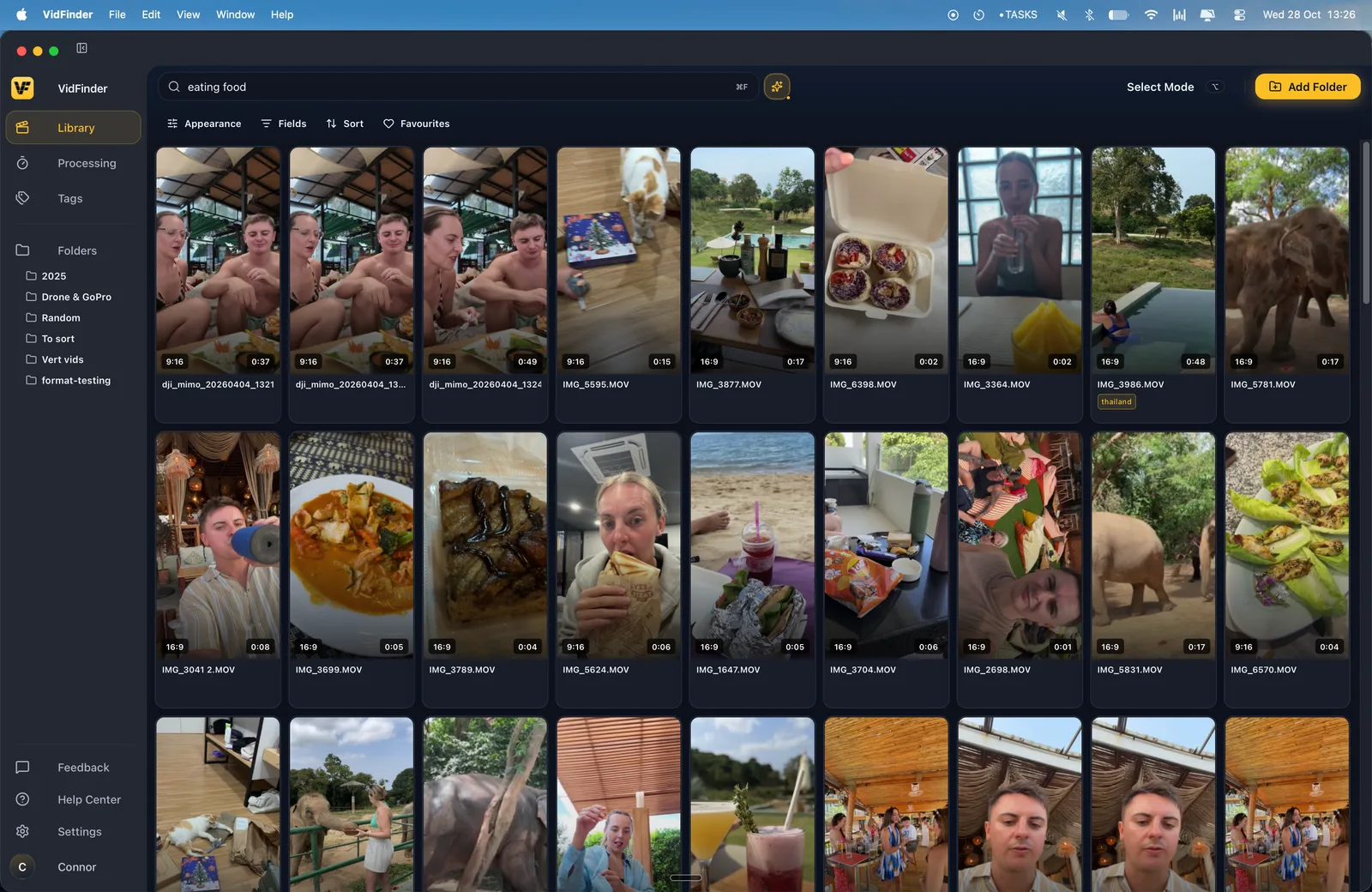
VidFinder is a native macOS app that brings the videos from every hard drive, iCloud and Google Drive folder on your Mac into one visual library. It indexes the files where they already live, generates an 8-second scrub-able preview plus a thumbnail for each clip, and lets you search by file name, folder name, tags, or a plain-language description of what is in the shot. Originals are never moved or modified.
The design target is the footage archive, not the camera roll. VidFinder reads 20 video container formats (mp4, mov, m4v, mkv, mxf, and more), maps a folder sidebar to your actual shoot structure, and keeps clips searchable whether or not you ever tagged them. It is read-only by design: "Remove," "hide," and "favorite" set database flags only, and the app never runs a rename or delete against your source files. Your drives look exactly the same after VidFinder as before it.
Search by Meaning vs Search by Recognition
Both tools use on-device AI, but they answer different questions. Apple Photos recognizes categories it was trained to label in personal media, like people, pets, and scenes. VidFinder's Smart Search matches a clip against a plain-language description of what it looks like, so you can type sunset over water or close-up of hands typing and rank footage by visual similarity, even with no tags and a camera-gibberish filename.
Under the hood, VidFinder runs OpenAI's CLIP ViT-B/32 model fully on-device and samples 8 frames per video, evenly spaced from 5% to 84% of the runtime, so a moment two thirds of the way into a clip still counts. It builds a 512-dimension vector per frame and ranks by cosine similarity. One honest limit worth stating: Smart Search is visual only. It does not transcribe speech and does not read on-screen text, and Apple Photos does read text inside images, which is a genuine Photos advantage for that one job.
Getting a Clip Into Your Editor
In VidFinder you click and drag a clip straight from the dashboard into your video editor, an email, a Slack message, or any app that accepts file drops, and it hands over the real video file. Apple Photos on Mac is unreliable here: dragging a video into an editor can drop a still image or a thumbnail, so Apple recommends exporting the file first. That export detour is the step VidFinder removes.
Multi-select in VidFinder collects clips into a Selection Tray for batch handling, so you can gather ten shots across three drives and drag the whole set into your timeline at once. Because the previews live locally in the VidFinder cache, you can browse, search, favorite, and queue clips even when the source drive is unplugged, then plug it in for the final drag-out.
Your Files Stay Where They Live
VidFinder indexes your videos in place and processes everything on your Mac. The CLIP analysis, frame sampling, and search all run locally, and your video files, extracted frames, and the search index are never uploaded. The only thing VidFinder downloads is the AI model itself, a one-time file of about 149 MB. Apple Photos, by contrast, is built around iCloud sync as its core feature.
This is a real fork in the road, not a knock on either tool. If you want your library mirrored to every device, iCloud sync is the reason to use Photos. If you are working with unreleased or client-confidential footage and do not want a cloud copy, VidFinder keeps everything local: no upload, no third-party server, no second copy of your archive sitting somewhere else. One caveat for fairness: VidFinder treats the Apple Photos library bundle as opaque and does not crawl inside it, so footage stored only in Photos needs to be exported to a normal folder before VidFinder can index it.
Which One Should You Use?
Use Apple Photos for personal memories: your camera roll, family videos, and anything you want synced across devices through iCloud for free. Use VidFinder for a working footage library: clips scattered across drives and cloud folders that you search by content, preview by scrubbing, and drag into an editor. Many creators run both, one for memories and one for footage.
The honest split in one line: Apple Photos is a consumer library for personal media, and VidFinder is a footage-library tool for searching the working video files on your Mac. If your pain is "I know I have a better take of this shot somewhere across four drives and I cannot find it," that is the VidFinder job. If your pain is "where is that clip of the kids at the lake," Photos already has you covered.
Frequently Asked Questions
Is VidFinder a replacement for Apple Photos?
No, and it is not meant to be. Apple Photos is a personal memory library with iCloud sync. VidFinder is a footage-search tool for the working video files on your drives. They solve different problems, and plenty of creators use both side by side.
Can Apple Photos search inside a video by content?
Apple Photos can search your library with recognition of people, pets, scenes, and locations, and natural-language queries surface personal clips. It is tuned for personal media inside its own managed library, not for searching a working footage archive spread across external drives and Google Drive folders.
Why does a video from Apple Photos become an image in my editor?
On Mac, dragging a video out of Apple Photos can hand the editor a still image or thumbnail instead of the clip. Apple recommends using File > Export to get the full-quality video. VidFinder drags the real video file straight into your editor with no export step.
Does VidFinder upload my footage anywhere?
No. All indexing and search run on your Mac. Your video files, the extracted frames, and the search index are never uploaded. The only download is the one-time AI model of about 149 MB. Apple Photos, by design, syncs your library to iCloud.
Can VidFinder index the videos already in my Apple Photos library?
Not from inside the Photos library bundle, which VidFinder treats as opaque. Export or copy those clips into a normal folder on a drive, iCloud, or Google Drive, and VidFinder will index them there.
Does VidFinder need me to tag everything first?
No. VidFinder searches file names and folder names right away, and Smart Search matches clips by visual meaning, so an untagged library is searchable from the start. Tags are for detail the picture and file name cannot convey.
Which is better for confidential client footage?
VidFinder, if keeping footage off the cloud matters. It processes and searches everything locally and uploads nothing. Apple Photos is built around iCloud sync, which is a feature for personal media but a copy of your footage leaving the machine.