
Finding every video on a Mac sounds like a one-search job. Type kind:movie into Finder and a list appears. The trouble starts when that list is shorter than it should be: the clips on the external drive are missing, a folder of iCloud footage never shows up, and the total looks nothing like the amount of video the Mac is holding.
This guide covers the built-in tools that find video files – a Finder search, a saved Smart Folder, and two Terminal commands – and the exact point where each one stops seeing files. It ends with what to do once the list exists, because a list of 4,000 filenames is not the same thing as being able to find a clip.
The Short Answer
Open Finder, press Command-F, set the search to This Mac, and change the Kind rule to Movie. Every video Spotlight has indexed appears, including clips on connected external drives. Click Save to keep it as a Smart Folder that updates on its own. Drives Spotlight hasn't indexed need the find command in Terminal instead.
That covers most Macs most of the time. The rest of this page deals with the cases it doesn't: drives that were never indexed, cloud files whose data isn't on the Mac, and video formats macOS doesn't class as a movie. Each one has a fix, and the table further down shows which method reaches which files.
Find Every Video With A Finder Search
Finder search is the quickest built-in way to list video files. Press Command-F in any Finder window, click This Mac in the scope bar, then set the first rule to Kind is Movie. Typing kind:movie into the search field does the same thing. Results cover every volume Spotlight has indexed.
Step by step:
- 1
Open a search. In Finder, press Command-F, or choose File > Find.
- 2
Widen the scope. Click This Mac in the bar under the toolbar. Left on the current folder, the search only looks inside that folder.
- 3
Set the kind. Change the first menu to Kind and the second to Movie.
- 4
Sort the results. Switch to list view with Command-2 and click a column header to sort. Right-click the header row to add columns such as Size or Date Created.
- 5
Narrow it if needed. Click the + button to add rules like Created date, File Size or Name contains. Rules combine with AND, so each one shortens the list.
To match by file extension as well as by kind, hold Option: the + button beside a rule turns into a … button. Click it and Finder adds a rule group that can be set to Any, which works as OR: Kind is Movie, or Name ends with .mkv, or Name ends with .mxf. That fallback matters because of how the Movie kind works.
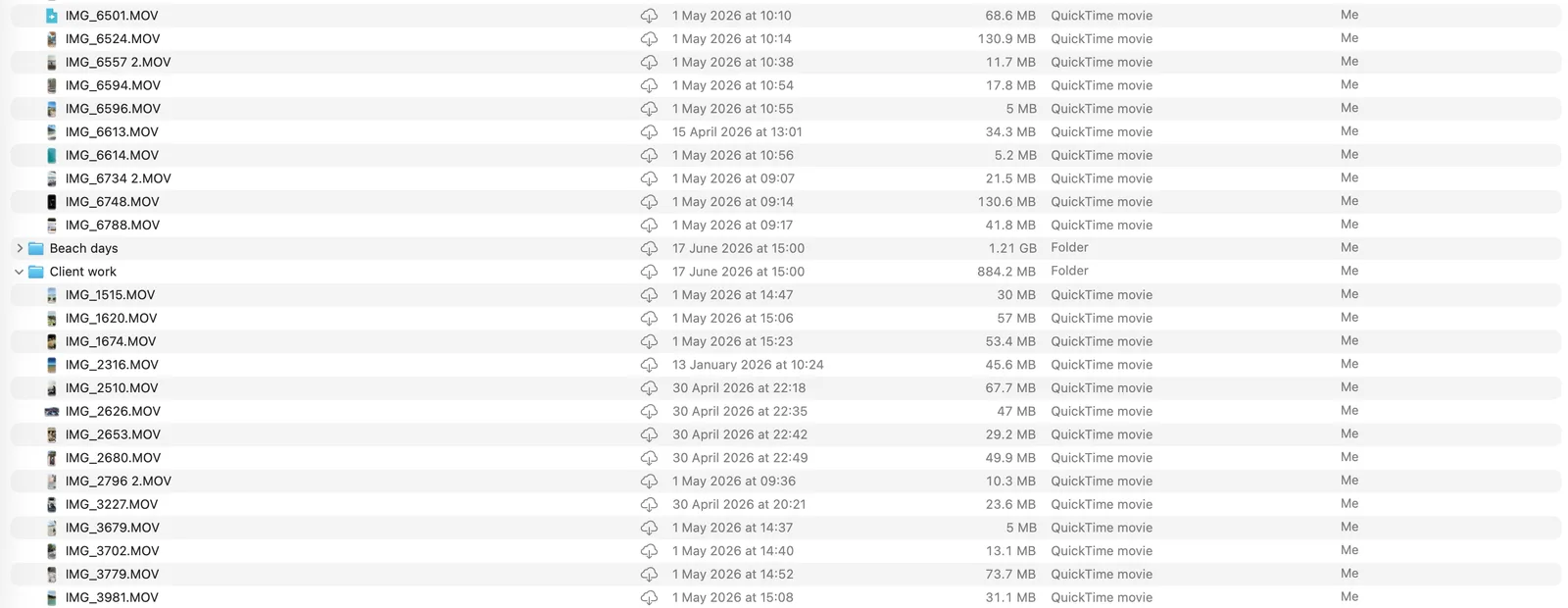
Kind is Movie relies on macOS knowing the file type. Apple's identifier for it is public.movie, described as a base type for "media formats that may contain both video and audio." A file whose extension macOS hasn't registered as a movie type falls outside that rule, however well it plays.
Save It As A Smart Folder That Updates Itself
A Smart Folder is a saved Finder search. Choose File > New Smart Folder, set the scope to This Mac, add the Kind is Movie rule, and click Save. It can sit in the sidebar and refreshes as Spotlight indexes new files, so a clip copied in today shows up without searching again.
A Smart Folder holds no files. Nothing is copied or moved; it is a live view of a search, and deleting it deletes only the search. When saving, Finder asks for a name and location and offers an Add To Sidebar checkbox, which is the easiest way to keep the list one click away.
A few variations that suit a video library:
- Largest videos first. Add File Size is greater than 1 GB and sort by Size. If the goal is freeing disk space, this is the most direct method on this page. Press the space bar to check a file in Quick Look before deleting it.
- One drive only.Start the search from a window showing that drive, then pick the drive's name in the scope bar instead of This Mac.
- Recent footage. Add Created is within last 30 days.
- Resolution or codec. Choose Other in the attribute menu to search on video metadata such as pixel width or codec.
Every one of these still reads from Spotlight's index. When a drive or folder is missing from the results, the cause is almost always the index, not the search.
Why Finder Misses Videos On External Drives And iCloud
Finder search only returns files in Spotlight's index. A drive that has indexing turned off, sits on the Search Privacy list, is still being indexed, or uses a format Spotlight struggles with will look empty. iCloud Drive files that macOS has removed to save space can also drop out of results until they are downloaded again.
Work through the causes in this order.
Check Whether The Drive Is Indexed
Open Terminal and run:
mdutil -s "/Volumes/DriveName"
Replace DriveNamewith the drive's name exactly as it appears in Finder, keeping the quotes if the name has spaces. The reply states whether indexing is enabled. mdutil -sa reports on every mounted volume at once.
If indexing is disabled, turn it on:
sudo mdutil -i on "/Volumes/DriveName"
If indexing is on but results are still missing, rebuild the index:
sudo mdutil -E "/Volumes/DriveName"
The -Eoption erases the drive's index and forces a rebuild; there is no need to switch indexing off and on around it. Indexing a large drive takes time, and results stay incomplete until it finishes.
Check The Search Privacy List
Open System Settings > Spotlight and click the Search Privacy… button at the bottom (labeled Spotlight Privacy… on some versions). Anything on that list is not indexed at all. Select the drive, click the – button, and Spotlight starts indexing it.
exFAT Drives And Network Shares
exFAT is a common format for drives shared between a Mac and a Windows PC. Writing about macOS 26, Eclectic Light notes that exFAT and FAT volumes "may encounter indexing problems with Spotlight." Network shares are a similar story: shared volumes and folders using SMB "are unlikely to be accessible to local Spotlight search." For both, use the find command in the next section, which reads the folders directly instead of relying on an index.
iCloud Drive Files That Aren't On The Mac
With Optimize Mac Storage turned on, macOS removes the data of older iCloud Drive files and leaves a placeholder in place of each one. How Spotlight treats those placeholders has shifted between macOS versions. Eclectic Light's 2023 tests found that only downloaded files returned hits. Its 2026 iCloud primer says files indexed while they were on the Mac stay searchable after their data is removed. The safe assumption is that a video never downloaded to this Mac may not appear.
To keep a folder of footage searchable, right-click it and choose Keep Downloaded. That keeps the full files on the Mac, so it uses local disk space.
Find Videos From Terminal With mdfind And find
Terminal offers two commands. mdfind queries the same Spotlight index as Finder and prints every indexed video as a file path, which is useful for counting or saving a list. find ignores the index and walks the folders directly, so it reaches unindexed drives, exFAT volumes and iCloud placeholders, at the cost of speed.
mdfind: The Spotlight Index As A Text List
mdfind "kMDItemContentTypeTree == 'public.movie'"
kMDItemContentTypeTreeholds a file's type plus every type it descends from, so this matches anything macOS classes as a movie, whatever the extension. Three useful variations:
- One drive only:
mdfind -onlyin "/Volumes/DriveName" "kMDItemContentTypeTree == 'public.movie'" - Count the results: add
| wc -lto the end. - Save the list: add
> ~/Desktop/all-videos.txtto the end.
Because mdfind reads the same index as Finder, it has the same blind spots. An unindexed drive returns nothing here too.
find: Every Folder, No Index
find "/Volumes/DriveName" -type f \( -iname "*.mp4" -o -iname "*.mov" -o -iname "*.m4v" -o -iname "*.mkv" -o -iname "*.avi" -o -iname "*.mts" -o -iname "*.mxf" -o -iname "*.webm" \) 2>/dev/null
This lists every file on the drive whose name ends in one of those extensions. -iname ignores capitalization, so C0043.MP4 and clip.mp4 both match. 2>/dev/null hides permission messages. Add -size +1G before 2>/dev/null to list only files over 1 GB, and add more -o -iname "*.ext" entries for any other formats in the library.
Two things to know before relying on it:
- It matches names, not types. The list is only as complete as the extensions in the command.
- It reads every folder. That makes it slower than an index query, and pointing it at the home folder (
find ~ …) can trigger permission prompts for Desktop, Documents and Downloads. Granting Terminal Full Disk Access in System Settings > Privacy & Security avoids them.
On macOS Sonoma and later, iCloud Drive placeholders appear on disk under their real names, so findlists them even when Spotlight doesn't. Opening one downloads it first.
Which Method Finds What
No single built-in method covers everything. Finder search and Smart Folders are the easiest but depend on Spotlight's index. mdfind shares those limits and adds a text list. find reaches the most files but needs exact extensions. And each one previews footage one file at a time, through Quick Look.
| Method | Indexed external drives | Unindexed or exFAT drives | iCloud files not on the Mac | Drives that aren't plugged in | Preview |
|---|---|---|---|---|---|
| Finder search | Yes | No | Not reliably | No | Quick Look, one file at a time |
| Smart Folder | Yes | No | Not reliably | No | Quick Look, one file at a time |
mdfind | Yes | No | Not reliably | No | None – text list |
find | Yes | Yes | Yes, by name | No | None – text list |
| VidFinder | Yes – any connected folder | Yes – any folder Finder can see | Keeps indexed clips visible with a status | Yes, for clips already indexed | 8-second scrub preview per clip |
For a one-off count or a disk cleanup, the Smart Folder and find are enough. The last row is for a different job.
You Have A List, Not A Library
The methods above answer where video files are. They don't answer which one is the shot needed today. A list of camera filenames like C0043.MP4 still means opening clips one by one. A visual library adds a playable preview for every clip and a search that reads the footage, not just the name.
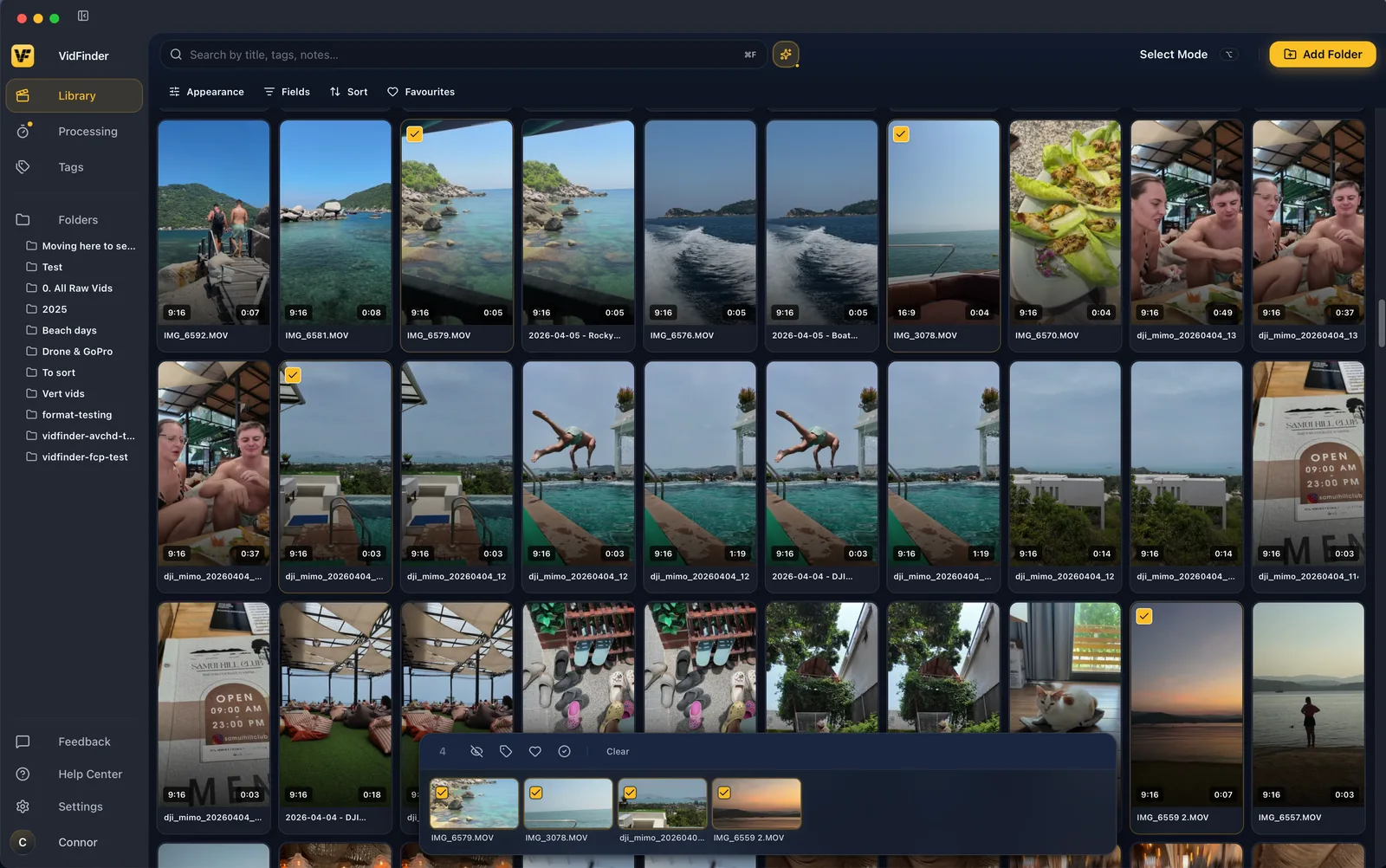
VidFinder is a native macOS app that brings the videos from every hard drive, iCloud and Google Drive folder on your Mac into one visual library – scrub through previews – search by file name, folder name or simply describe what's in the shot. Find your clips in seconds, not minutes.
It solves the same problem as the methods above, from a different direction:
- It reads connected folders directly. Connect any folder Finder can see – internal, external, iCloud-synced or Google Drive – and VidFinder indexes the video files in it, without depending on Spotlight. It recognizes 20 container formats: mp4, mov, m4v, mkv, avi, webm, mts, m2ts, mxf, ts, 3gp, asf, dv, flv, gif, m2v, mpg, ogv, vob and wmv. Documents, images and apps are skipped.
- Every clip gets a preview. For each video it generates a thumbnail and an 8-second preview at 4 fps. Anything longer than 8 seconds is time-compressed into that preview, so hovering across a thumbnail shows the whole clip, start to finish.
- Search covers the picture, not only the name. Search by file name, folder name or tag, or describe the shot. Smart Search samples 8 frames per video, spread from 5% to 84% of its length, and runs on the Mac. It reads what a frame shows, including large on-screen text, though it struggles with smaller text; it does not search spoken words. How to search inside videos on Mac explains the method.
- Unplugged drives stay in the library. Previews live in a local cache, so clips on a disconnected drive stay visible, marked as offline, instead of disappearing. Search and shortlist them, then plug the drive in to use the files.
- Originals are never touched. VidFinder only reads source files. It never moves, renames, edits or deletes them, and removing a folder from the library clears only its cached previews.
What it doesn't do matters just as much. Camera-card structures (AVCHD and BDMV) and Final Cut, Photos and iMovie libraries are treated as closed packages and not crawled; copy the clips out into a normal folder to index them. There is no duplicate finder, and it is not a storage cleaner – for freeing disk space, the Smart Folder sorted by size is the better tool. It runs on Macs with Apple silicon and macOS 11 or later.
For a closer look at where the two tools overlap, see VidFinder vs Finder. For structuring the library once every clip is in one place, see How to organize a video footage library on Mac.
Frequently Asked Questions
How do I see every video on my Mac in one place?
Create a Smart Folder: in Finder choose File > New Smart Folder, set the scope to This Mac, add the rule Kind is Movie, and save it to the sidebar. It lists every video Spotlight has indexed, including on connected external drives, and updates as new files arrive.
How do I find all MP4 and MOV files on my Mac and external drive?
In a Finder search, hold Option and click the … button that replaces + to add an Any group with Name ends with .mp4 and Name ends with .mov. For a drive Spotlight hasn't indexed, run find "/Volumes/DriveName" -type f \( -iname "*.mp4" -o -iname "*.mov" \) in Terminal, which reads the drive directly.
Why doesn't Spotlight show videos on my external hard drive?
The drive is usually not in Spotlight's index. Run mdutil -s "/Volumes/DriveName"to check, remove the drive from System Settings > Spotlight > Search Privacy if it is listed, and rebuild with sudo mdutil -E "/Volumes/DriveName". exFAT drives and network shares can stay unreliable; find works on both.
Why does Finder find fewer videos than I know I have?
Finder only shows files Spotlight has indexed and is allowed to show. Unindexed drives, network shares, iCloud files whose data isn't on the Mac, and video formats macOS doesn't class as Movie are the usual gaps. In macOS Sequoia, Spotlight also withholds results from Library folders. Running find on the folder gives the complete list by extension.
Can I find videos on a drive that isn't plugged in?
Not with Finder, Spotlight or Terminal; all three need the drive mounted. VidFinder keeps clips from a disconnected drive in its library, marked as offline, with previews stored locally, so they can still be searched and shortlisted. Reconnect the drive to open or move the files.
Can VidFinder find duplicate videos?
No. VidFinder has no duplicate-detection feature. It indexes, previews and searches video files where they already are. To track down large or repeated files, sort a Finder Smart Folder by size or name.
Does VidFinder move or upload my videos?
No. It only reads source files and never moves, renames, edits or deletes them. Indexing and search run on the Mac, and video files, frames and the search index are never uploaded.