Every editor hits the same wall, just at a different point. In year one you know where everything is. By year three you have a working drive, an archive drive, a Google Drive folder and a few thousand clips, and you have started re-shooting things you are fairly sure you already own.
Keeping a b-roll library properly searchable is a real job. Rename the clips, tag the clips, keep the tags consistent, then do it again after every shoot for years. Most people start. Most people stop somewhere in the second busy month. That is not a discipline problem, it is hours of unpaid admin standing between you and the edit, and it always loses to the deadline.
So what actually works once the library is already messy?
The Short Answer
Describe the shot instead of remembering the filename. A visual search toolreads what is in each frame, so typing "sunset over water, drone" returns the clips that look like that, including the ones still named C0043.MP4. Scrub the results, pick the take, and drag it into your timeline. Under a minute, no tagging first.
The part that matters is what you do not have to do first. No renaming pass, no tagging weekend, no importing everything into a library before you can look for anything. You search the footage as it currently sits on your drives, and you do it on the night you need the clip.
Why B-Roll Is The Hardest Footage To Find
B-roll comes off the card in batches with names like C0043.MP4, and it gets reused in projects it was never filed under. A-roll earns a name because it is the point of the shoot. B-roll is the footage you are least likely to have described, and the most likely to need eighteen months later.
Three things stack up against you.
It arrives unnamed and in bulk. Nobody renames 240 clips from a single afternoon. The camera names them, you dump the card into a project folder, and the description that existed in your head at the time is gone by the following week.
It is filed under a project it will outlive.A cutaway of hands on a keyboard gets filed under the client shoot it was captured on. Two years later you need it for something completely unrelated, and the client's name is the last word you would think to search.
It is multi-attribute by nature. One drone shot is Bali, sunset, aerial, client work and 2024 at the same time. A folder tree makes you pick one of those and throws the other four away.
The result is a library where the fastest search term is the one thing you never wrote down: what the shot actually looks like.

The 60-Second Method For Pulling A B-Roll Shot
Open your library, type a plain description of the shot, scrub the results with your cursor, then drag the take you want straight into your timeline. Three actions, no folder browsing. The method works because the search reads the picture, so it does not depend on you having named or tagged anything first.
Here is the sequence in full.
- 1
Describe the frame, not the file. Type what you would say out loud to a colleague: "close up of hands on a keyboard," "empty street at night," "coffee being poured." Plain words beat clever ones.
- 2
Read the grid, do not open anything. Results come back as thumbnails. This is the step that saves the most time, because the alternative is the open, watch, close, repeat loop that eats twenty minutes.
- 3
Scrub to check the take. Hover a thumbnail and the preview plays. In VidFinder that preview is an 8-second clip at 4 fps, and for anything longer than 8 seconds the whole video is time-compressed into those 8 seconds, so a single hover covers the full shot rather than the first few frames.
- 4
Steer the set if it is too broad. Add a word. See the section on stacking terms below.
- 5
Drag it where it needs to go. Straight into your editor, or into the Selection Tray first if you are pulling several.
The reason this fits inside a minute is that steps 2 and 3 replace opening files. Search runs locally against an index on your own disk, with no network round trip, so a library of several hundred videos returns results in under a second. The typing is the slow part.
Search By What The Shot Looks Like, Not What You Named It
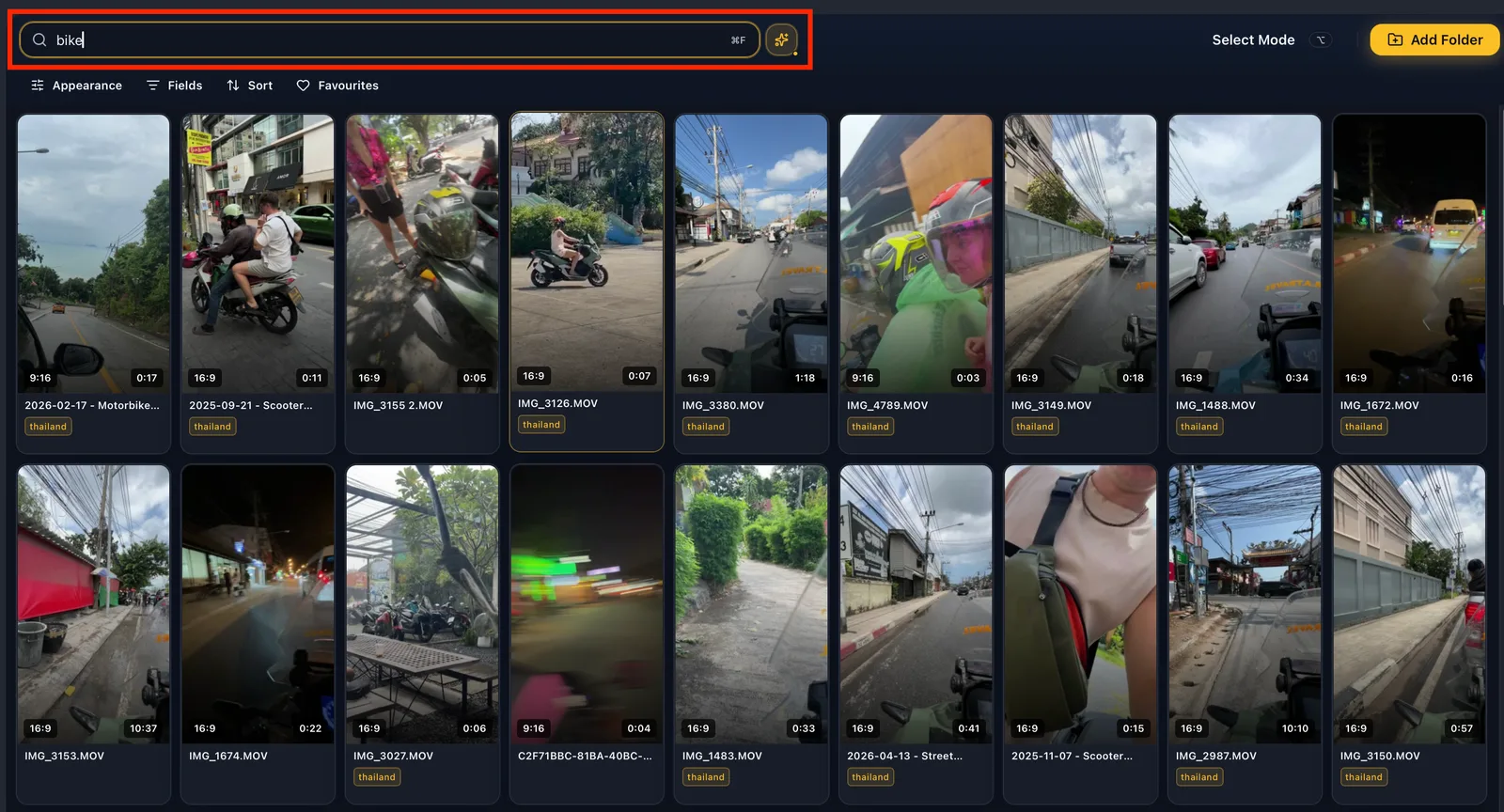
Visual search turns each frame into a numeric fingerprint and turns your typed words into the same kind of fingerprint, then finds the closest matches. VidFinder samples eight frames per video, spread from 5% to 84% of its length, so a clip is represented across its whole duration rather than by one thumbnail.
The specifics matter if you want to predict what it will and will not find.
The model is OpenAI CLIP ViT-B/32, INT8-quantized and converted to ONNX, running on-device through the Rust ONNX Runtime. There is no Python and no server. Each of the eight frames becomes a 512-dimension vector, stored in a local SQLite table on your Mac. Your typed query becomes a vector of the same shape, and the app scores every video by its closest-matching frame.
That storage is small: 16 KB of vectors per video, which works out to about 16 MB per 1,000 videos. The one-time cost is the model download itself, pulled once in the background. You do not have to trigger it, and keyword search keeps working the whole time it is coming down.
Nothing about this leaves your machine. Frame extraction, indexing and search all happen locally. Video files, frames and vectors are never uploaded. For most editors that matters less as a privacy position and more as a practical one, because uploading a 4 TB archive to a cloud service before you can search it is not a thing anyone does on a deadline.
The other half of the trade: the app only reads your files. It never moves, renames, edits or deletes an original. Removing a folder from the library clears the cached previews and vectors and leaves your drive exactly as it was.
Final Cut Pro 12 Has Visual Search Now – Where It Helps, And Where It Doesn't
Final Cut Pro 12 added Visual Search on January 28, 2026. It searches media inside a Final Cut library, on Apple silicon, after you run Analyze & Fix. It is useful once footage is imported. It does not help you find a clip that is still sitting on an external drive.
Credit where it is due. Apple shipped natural-language search over objects and actions, plus Transcript Search for spoken words, and both run on your Mac. If your footage is already in a Final Cut library and already analyzed, it is a real improvement over scrolling the browser.
The limits are worth knowing before you rely on it:
- Analysis is not automatic for existing work.Importing new media triggers it, but opening a project you already had does not. You select events and run Analyze & Fix yourself.
- It covers source media in the browser only. Timeline content is excluded, as are multicam, synced and compound clips.
- It ignores keywords you applied. Your own labeling and the visual search are separate systems.
- Accuracy is uneven.In one published test, a search for "horses" returned 30 clips, of which 7 contained horses.
The structural point is bigger than any of those. A Final Cut library is a container you have to put footage into first. The b-roll problem is mostly about footage that is not in any container yet: the archive drive, the Google Drive folder, the three years of cards you dumped and never imported. Search that only sees what you already imported cannot answer "do I have a shot of this somewhere."
A library-wide index works the other way round. You connect folders from anywhere your Mac can see, including external drives and cloud-synced folders, and the whole lot becomes searchable without importing or copying anything.
Use both. Visual Search inside the edit you are cutting, library-wide search for the question of what you own.
Stack Words To Steer Which Clips Come First
Adding a word does not always shorten the list. A word your library knows literally, such as a folder name, a tag or part of a file name, tightens the pool. A word it does not know is read as a description, and clips that look like it get appended below the literal matches. Stacking steers the order.
Results arrive in three bands. At the top, the clips that match every literal word. Below them, clips from that pool that look like the leftover description, ranked by resemblance. Below those, visual matches pulled from the wider library.
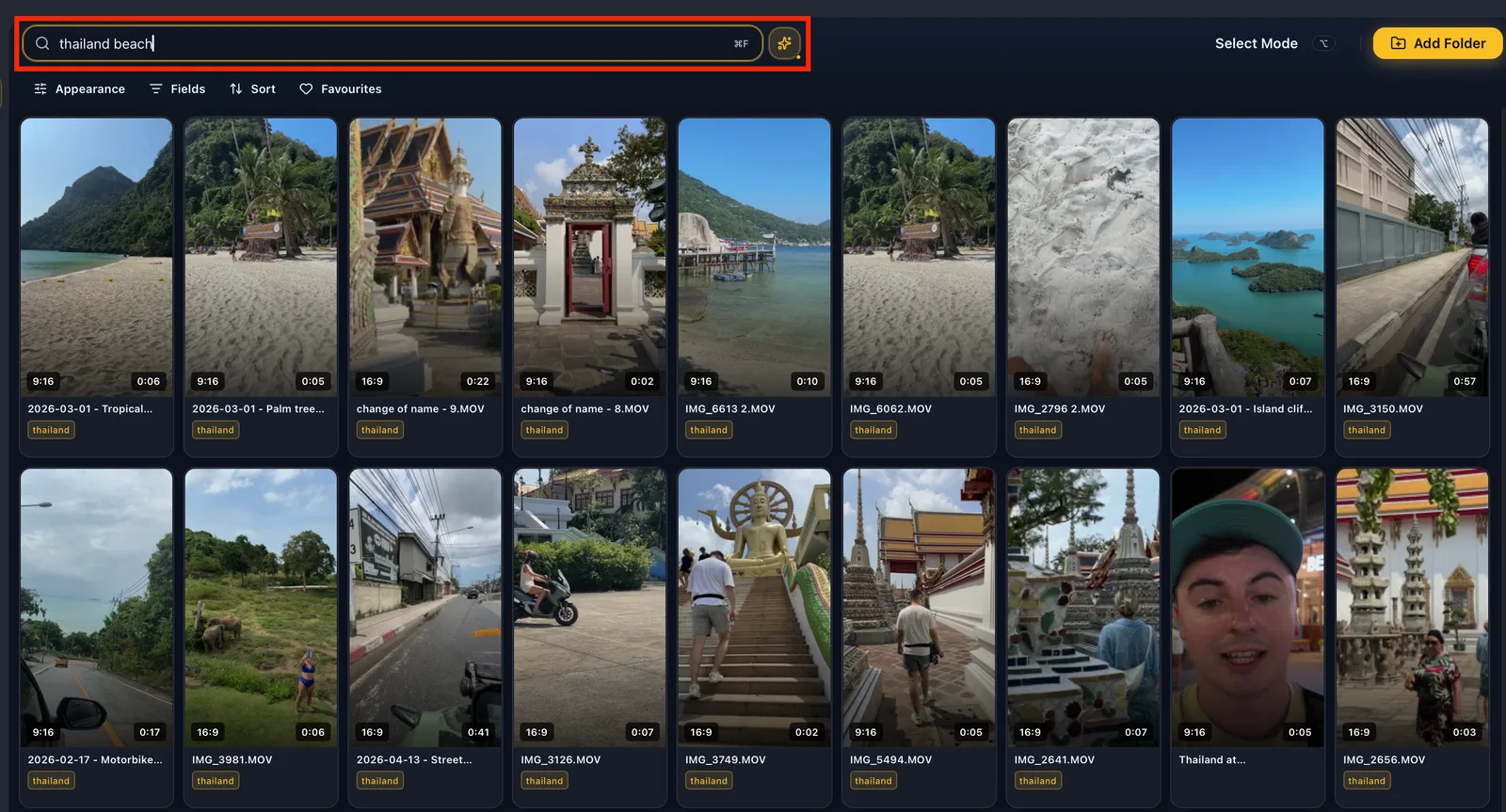
For b-roll the pattern is simple: lead with what your library already knows, and put the picture word last. Type 2024 bali sunset and, if 2024 and bali are folder names you have, they set the pool while sunset ranks what is inside it. Read the top band as the strict answer to what you asked. Read the bands underneath as the app offering you the clip you forgot to label.
Each literal word is checked against three places at once: the file name, the full folder path, and your tags. Match any one of the three and the clip appears, which is why untagged footage still turns up. The three do not behave identically on half-typed words. File names match on word beginnings, so bea finds beach.mp4 but ach does not. Tags and folder paths match any run of letters, so ach does find a clip tagged beach. Case and punctuation are ignored, so Cam A, cam a and cam-a all do the same thing.
One behavior surprises people, and it matters most on b-roll searches. A word that happens to be one of your tags gets pulled out of the description and used as a filter instead. If you have a water tag and you search sunset over water, you are asking for tagged-water clips ranked by how much they look like a sunset, not for every clip that looks like a sunset over water. Pick a different word when you want the whole phrase read as a picture.
Your Sort setting governs the literal band only. The visual bands underneath hold their relevance order regardless, so watching your sort order stop applying part way down the grid is the visual half taking over.
Finding B-Roll On A Drive That Isn't Plugged In
Previews and thumbnails live in a local cache on your Mac, separate from the source files. When a drive is disconnected, its clips stay in the library marked as offline rather than disappearing, so you can still search and shortlist them. Plug the drive back in for the final drag into your editor.
Every video carries an availability state: indexed, drive_offline, drive_mismatch, relocated or unrecoverable. Each connected folder records the volume it came from, so the app can tell "this drive is unplugged" apart from "this file was deleted." Nothing gets silently dropped from your library because a drive was not attached when you opened the app.
This turns dead time into planning time. You can pull a shortlist for tomorrow's edit on a train, then attach the drive when you sit down.
Re-linking is the other half. If a drive gets remounted at a different path, matched videos reuse their existing thumbnails and preview clips instead of reprocessing. Files are matched by inode and device first, then original relative path and size, then filename and size.
The Five-Minute Habit That Keeps The Next Search Fast
Do not schedule a tagging weekend. Add tags only to the clips a search already surfaced, while they are on screen in front of you. The shots you search for are the shots worth describing, and the ones you never search for cost you nothing. The library improves in the places you actually use it.
The usual plan is to process every shoot within 24 hours and put five tags on every clip. It holds up while the calendar is kind. A half-maintained tagging system then ends up worse than none, because you stop trusting the results and go back to opening files one by one.
Search-first tagging inverts the cost. Visual search gives you a usable library on day one with zero input from you. Your own tags then cover the things a model cannot infer: the client's name, the location, the fact that take three is the one where the audio was clean, whether you have already used this shot.
Three tags that pay for themselves on b-roll:
- The proper noun. Place, client, person. No visual model knows the beach is Kata Noi.
- The verdict."Used," "hero," "rejected." This is the tag that stops you re-watching the same six takes.
- The shot type."Wide," "macro," "handheld." Useful because it is how you think when you are filling a gap in an edit.
Bulk selection makes this cheap. Select a set of results, tag them all at once, move on. It takes the five minutes at the end of a search you were already doing.
Frequently Asked Questions
How do I find b-roll I never tagged or renamed?
Search by what the shot looks like. A visual index reads the frames themselves, so a clip named C0043.MP4 in a folder called "Card 2" is as findable as one you carefully labeled. Tagging becomes an optimization rather than a prerequisite.
Can Spotlight or Finder search inside my video files?
No. Spotlight indexes a video's filename and basic metadata such as duration, codec and dimensions. It does not index picture content. Searching your Mac for "sunset" returns files with "sunset" in the name, not the forty clips that contain one.
Does Final Cut Pro's Visual Search work on footage outside my Final Cut library?
No. It searches source media inside a Final Cut library after that media has been analyzed, on a Mac with Apple silicon. Footage sitting on an external drive that you have not imported is outside its reach.
How fast is visual search on a large library?
Search runs locally against an index on your own disk, so there is no network round trip. On a library of several hundred videos, results come back in under a second. Search compares your query against every stored vector, so latency rises on very large libraries.
Do my videos get uploaded anywhere?
No. Frame extraction, indexing and search all run on your Mac, and video files, frames and vectors are never uploaded. The only thing that ever downloads is the AI model itself, one time.
Can I search b-roll on an external drive that isn't connected?
Yes. Previews and thumbnails are cached locally, and clips on a disconnected drive stay in the library marked as offline rather than vanishing. You can search, scrub and shortlist without the drive attached, then plug it in to move files into your editor.
What about footage still on a camera card?
AVCHD and BDMV card structures are treated as opaque and are not crawled, along with Final Cut, Photos and iMovie libraries. Copy the clips into a normal folder and connect that folder to index them.
How much disk space does the index use?
About 16 KB of vectors per video, roughly 16 MB per 1,000 videos, plus small cached preview clips and thumbnails. The AI model files are a one-time download on top of that.