Google Drive and VidFinder both hold video, but they solve different halves of the same problem. Drive stores and shares your files in the cloud and finds them by name, folder, and now spoken words. VidFinder is a native macOS app that finds the shot itself, on your Mac, by what the footage actually shows. This page lays out where each one stops so you can pick the right tool for the job.
The Short Answer
Google Drive is cloud storage. It finds videos by file name, folder, type, and, when captions are on, the words spoken inside them. It cannot search a video by what it visually shows. VidFinder is a native macOS app that indexes your local footage and searches it by content, on-device, with nothing uploaded.
The split is clean. Drive is built to store, back up, and share files across every device you own. VidFinder is built to find one clip in a scattered library by describing what is on screen. They are not really rivals. Most creators end up using both, and the rest of this page shows where each earns its place.
What Google Drive Does Well
Google Drive is strong cloud storage and sharing. It keeps a synced copy of your files off your machine, so a dead drive does not mean lost footage. You reach it from any phone, tablet, or computer, on Mac, Windows, or the web. Sharing a clip is a link, and multiple people can work from the same folder.
Say so plainly, because it is true: for backup, remote access, and handing a file to a collaborator, Drive is a sensible default. In February 2025 Google also added searchable video transcripts, so if a clip has captions enabled you can find and jump to a spoken line. Drive's search also reads text inside documents and images and supports operators like type:, owner:, title:, and before:/after:. None of that is in question here. What matters for a footage library is the one thing Drive was never built to do, which is the next section.
Where Google Drive's Video Search Stops
Google Drive finds a video by its file name, its folder, its metadata, and, when captions are enabled, the words spoken in it. It does not search by what the footage visually shows. A clip of a red kayak on a lake is invisible to Drive search unless "kayak" is in the file name, the folder, or the spoken audio.
That is the wall creators hit. Camera files arrive named C010C023_260610FK.mp4, and neither the file name nor the audio track describes the shot. Drive's transcript search, added in 2025, reads dialogue, not scenery, so silent B-roll, drone shots, and cutaways stay unsearchable by content. There is also no tag system and no visual preview short of opening each video and watching it, so finding the right take often means clicking through a folder one file at a time. Search that depends on what you typed months ago is search that fails exactly when you cannot remember.
How VidFinder Searches Video By What It Shows
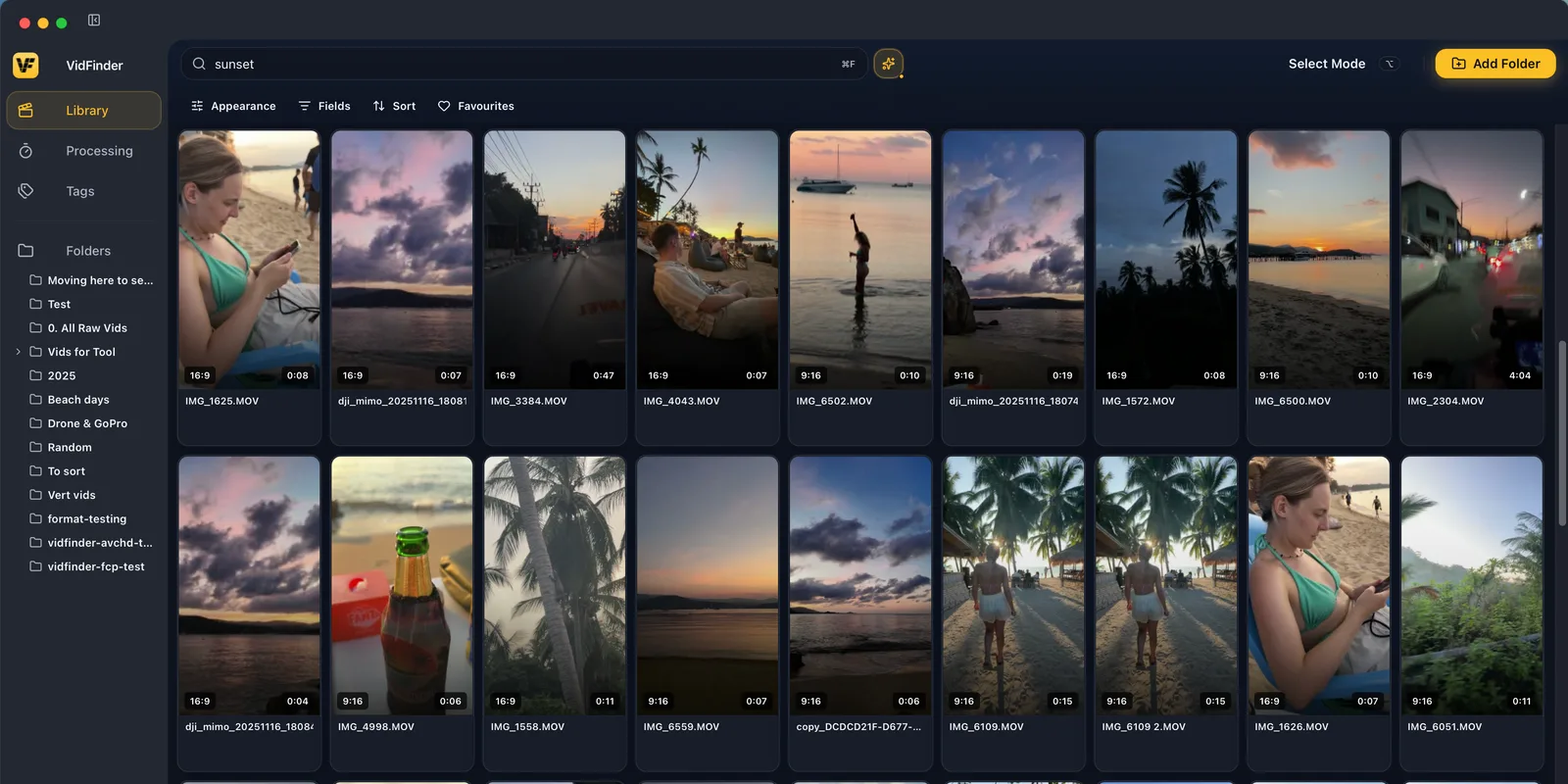
VidFinder reads the picture. Its Smart Searchuses an on-device AI model, Google's SigLIP 2, to match footage against a plain-language description of the shot. Type sunset over water or person in a red jacket and it ranks clips by how closely each one looks like that, even with zero tags and a camera-gibberish file name.
To do this, VidFinder samples 8 frames from each video, evenly spaced from 5% to 84% of the runtime, so a moment two thirds of the way in still counts. Each frame becomes a 768-dimension vector stored in a local database, and search is a similarity scan over those vectors. It is video-first by design, reading 20 common container formats from mp4 and mov to mkv and mts. Standard keyword search runs alongside it across file names, folder paths, and any tags you add, so an untagged, messy library is searchable the day you point the app at it. One honest limit worth stating: Smart Search is visual, so it does not transcribe speech. It can read large on-screen text, like a title card, but struggles with smaller text such as captions. That is the one search job where Drive's transcripts do something VidFinder does not.
Local And On-Device vs Cloud Upload
VidFinder runs entirely on your Mac. The AI analysis, the frame sampling, and the search all happen locally, and your video files, the extracted frames, and the search index are never uploaded. Google Drive works the opposite way by design: to search or stream a file, that file has to live in Google's cloud, which means uploading it and paying for the storage.
For a creator with terabytes of 4K footage, that difference is bandwidth and money. Uploading a full archive to Drive takes time and ongoing storage fees, and the master files then sit on someone else's server. VidFinder indexes the originals exactly where they already are, on internal or external drives, and only ever reads them, so it never moves, renames, or deletes a source file. The only thing it downloads is the AI model itself, about 700 MB, one time. For unreleased or client-confidential footage, there is no cloud step to trust.
Feature Comparison At A Glance
Here is the honest side-by-side. Google Drive wins on storage, sync, sharing, and cross-platform reach. VidFinder wins on finding a specific shot inside a local video library by what it shows. The overlap is small, which is why many creators run both rather than choosing one.
| Capability | Google Drive | VidFinder |
|---|---|---|
| Primary job | Cloud storage, backup, sharing | Local video search and library |
| Platform | Mac, Windows, web, mobile | macOS 11+ (Apple Silicon) |
| Search by file name / folder | Yes | Yes |
| Search by spoken words | Yes, with captions on | No (visual only) |
| Search by what the video shows | No | Yes (on-device AI) |
| Visual scrub preview | No, open each file | Yes, hover to scrub |
| Files uploaded to cloud | Yes, required | No, nothing uploaded |
| Touches your originals | Stores a synced copy | Read-only, never modifies |
| Browse when drives are offline | Needs connection | Yes, cached previews |
Using Google Drive And VidFinder Together
You do not have to pick one. Keep Google Drive for what it is good at, which is backup, cross-device access, and sharing a finished clip with a client or collaborator. Add VidFinder for the part Drive cannot do, which is finding the exact moment in your local footage by describing what is on screen, then dragging it straight into your editor.
A common workflow: shoot, offload to an external drive, and let VidFinder index that drive locally so every clip is searchable by content and scrub-able at a glance. When a cut is done, push the export to Drive to back it up and share the link. Because VidFinder reads folders that Drive syncs to your Mac, a Google Drive folder that is available offline can itself be indexed and searched by content. The two stack cleanly: Drive is where footage is stored and shared, VidFinder is where you find it.
Frequently Asked Questions
Can Google Drive search inside a video for what it shows?
No. Google Drive searches a video by its file name, folder, metadata, and, when captions are enabled, the words spoken in it. It does not index or search the visual content of a clip, so a shot is only findable if the thing you are looking for is in the name, folder, or spoken audio.
Does VidFinder upload my videos like Google Drive does?
No. VidFinder runs on your Mac and never uploads your video files, the frames it samples, or the search index. Google Drive, by contrast, requires your files to be stored in its cloud. The only thing VidFinder downloads is its AI model, about 700 MB, one time.
Is VidFinder a replacement for Google Drive?
No, and it is not meant to be. VidFinder does not store, sync, or back up your files in the cloud, and it has no sharing links. It is a local search-and-library tool. Keep Drive for backup and sharing, and use VidFinder to find the shot.
Can VidFinder search a Google Drive folder?
Yes, if that folder is synced and available offline on your Mac. VidFinder indexes any folder Finder can see, including a Google Drive folder stored locally, and makes those videos searchable by content. It reads the files without moving or modifying them.
Does VidFinder search spoken words the way Drive's transcripts do?
No. VidFinder's Smart Search is visual, so it matches what a frame looks like, not what is said. Searching spoken dialogue is the one thing Drive's caption transcripts do that VidFinder does not. VidFinder's edge is finding footage with no useful name and no dialogue at all.
What videos can VidFinder index?
VidFinder reads 20 common container formats, including mp4, mov, m4v, mkv, avi, webm, mts, and m2ts. It runs on macOS 11 or later on Apple Silicon and indexes footage on internal and external drives, plus any cloud folder synced to your Mac.